
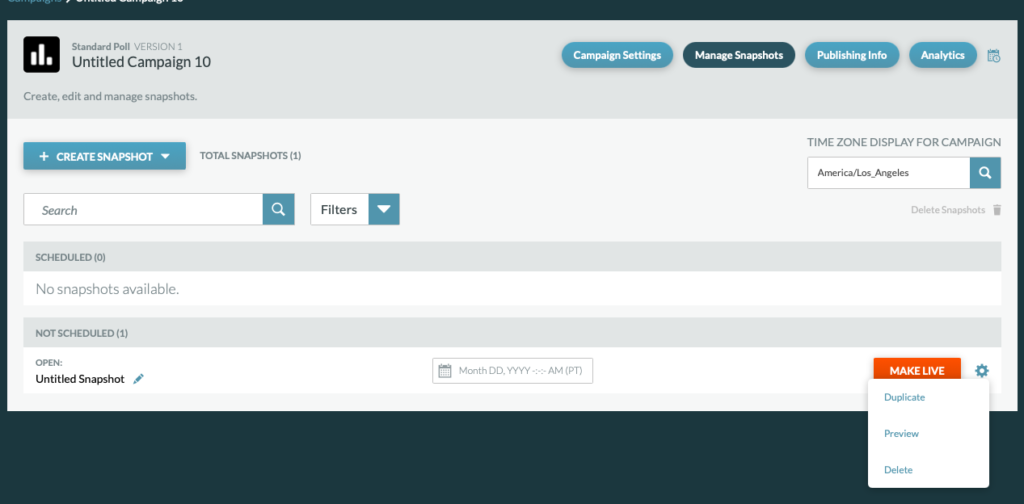
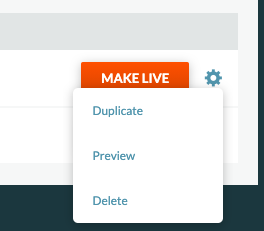
You can duplicate a snapshot by clicking on the gear icon next to the LIVE/MAKE LIVE button and choosing “Duplicate” from the drop-down menu. Duplicating a snapshot will clone an existing snapshot and then you can edit it by clicking the pencil icon.
Important Note: If an OPEN poll has ever been set to LIVE, if you try to edit the poll configurations, the “+ ADD OPTIONS” button will be disabled. You will need to duplicate the poll/snapshot and then you may edit the cloned version.
Delete a Snapshot
You can delete a snapshot by clicking on the gear icon next to the LIVE/MAKE LIVE button and choosing “Delete” from the drop-down menu.
Deleting a snapshot will permanently delete the snapshot and all its contents.
Setting Up “Master” Snapshots and/or Campaigns
If you will be running multiple polls that will use the same styles and settings, we recommend that you create and set up a “Master” open and closed snapshot that is used for styles, but does not have any poll questions.
- This snapshot can be duplicated for each iteration of the poll and will maintain the same styles
- As long as the snapshots are still under the same campaign, they will maintain the same URL
If you will be running multiple campaigns with the same styles, we recommend that you create and set up a “Master” campaign that includes the desired open and closed snapshots.
- Each time the campaign is duplicated, all styles and snapshots will be duplicated
- Each campaign will have a new URL and its own analytics/data