
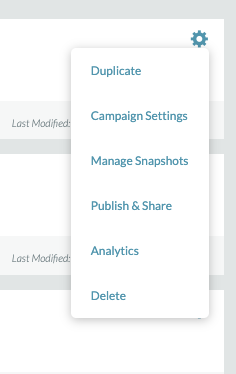
A campaign can be duplicated by navigating to the main Campaigns page and clicking the gear icon to the right of the campaign name. Select “Duplicate” from the drop-down menu.
This same drop-down menu allows you to navigate to the different campaign tabs: Campaign Settings, Manage Snapshots, Publishing Info, and Analytics
You can also choose to delete a campaign by selecting “Delete” from the drop-down menu.
Important Note: Doing so will permanently delete the entire campaign and all of its snapshots.
Duplicating a campaign will copy over all the settings under the “Campaign Settings” tab, including:
- 404 Error Page Settings
- Geo Settings
- Page Info: Favicon settings and Page Title
- Social sharing configs
- Google Analytics ID
All snapshots under the “Manage Snapshots” section will copy over, but scheduled snapshot times will not. Please be sure to schedule your snapshots after duplicating a campaign.
Setting Up “Master” Snapshots and/or Campaigns
If you will be running multiple polls that will use the same styles and settings, we recommend that you create and set up a “Master” open and closed snapshot that is used for styles, but does not have any poll questions.
- This snapshot can be duplicated for each iteration of the poll and will maintain the same styles
- As long as the snapshots are still under the same campaign, they will maintain the same URL
If you will be running multiple campaigns with the same styles, we recommend that you create and set up a “Master” campaign that includes the desired open and closed snapshots.
- Each time the campaign is duplicated, all styles and snapshots will be duplicated
- Each campaign will have a new URL and its own analytics/data