Once you create an OPEN snapshot, you can configure and style the poll in the snapshot editor.
NOTE: You can edit a snapshot at any time by navigating to the main Manage Snapshots page and clicking the pencil icon next to the snapshot title.
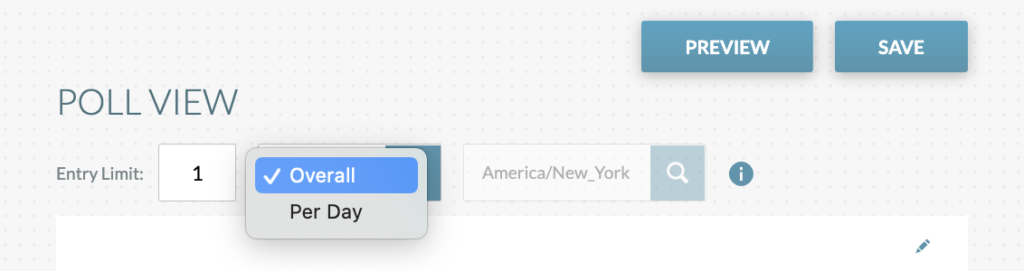
Entry Limit
Set the entry limit for the snapshot.
- The entry limit controls the max number of times a user can vote and if the limit is based on the day or overall.
- The timezone should also be set.
- The entry limit can be used with or without e-mail login.
- Entry limit must at-least be set to 1.
- Once the snapshot is pushed live, the Entry Limit is locked and cannot be modified.
General Configuration Notes:
- Click on text to edit the copy.
- Click on the pencil icon to style and configure elements (text, links, backgrounds, button colors, upload images/video)
- For fields with a “+”, click to expand and view additional fields.
All text has the following configuration options: choose text color, font options, weight/style, size, alignment, link options: link, hover state, underline.

At the top and bottom of the snapshot editor, you’ll see PREVIEW and SAVE buttons.
PREVIEW: Click to preview your poll at any time while customizing it. The preview will open in a new browser tab and you’ll see what the poll will look like in its LIVE state.
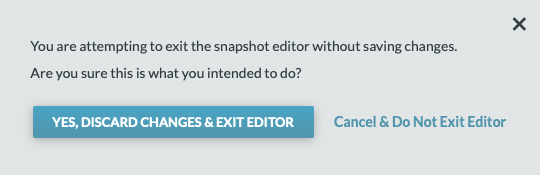
SAVE: Click to save all your edits. Note: If you don’t save changes before exiting the editor, all changes you made will be discarded.
Exit Editor: Click on the “Exit Editor” gear icon in the top right corner to exit. If you attempt to exit without saving, a modal will pop up and prompt you to confirm your choice.