
After logging into Campaign Manager you will be brought to the Campaign Dashboard. If you have access to more than one account, confirm you are on the account you want by checking the dropdown menu at the top of the screen.
The Campaign Dashboard displays all campaigns for an account as well as allows you to create campaigns, edit campaigns, duplicate campaigns and view template versions.
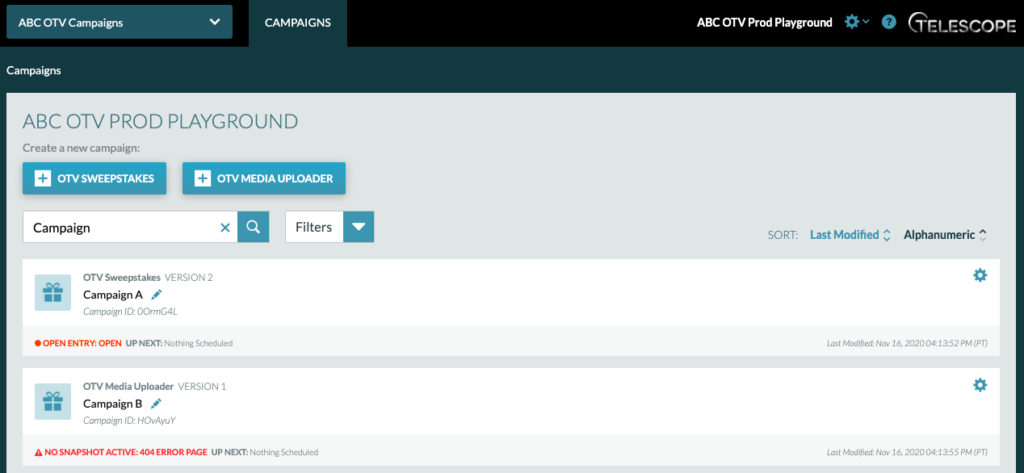
To edit a campaign, select the pencil icon next to the campaign name you wish to edit. This will take you to the Campaign Settings tab of the selected campaign. Once on this tab, you can also access the Manage Snapshots, Publishing Info, and Analytics tabs.
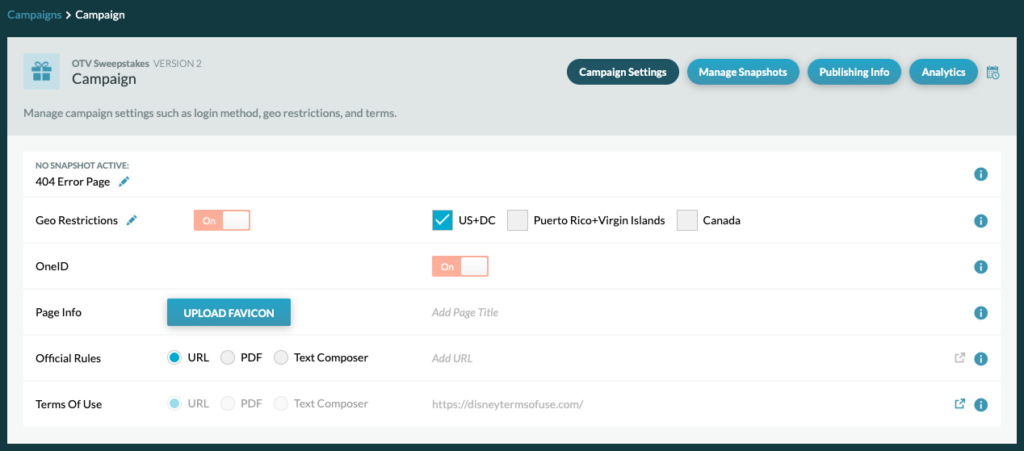
On the Campaign Settings tab, you can:
- Edit the 404 Error Page
- Edit the Geo Restrictions Page & Update Restrictions
- View One ID Status
- Edit Page Info
- Edit Official Rules
- View Terms Of Use Status
404 Error Page
If there is no snapshot active for your campaign, the URL will show a 404 Error Page. You can make the 404 Error Page for each campaign unique by adding an image or video, writing a special message, and/or adding up to three text links. You can access the 404 Error Editor Page by clicking the pencil icon.
Geo Restrictions Page
Each campaign will have its own Geo Restrictions page in which a user will see if they are out of geo. You can make the Geo Restrictions Page unique for each campaign by adding an image or video, writing a special message, and/or adding up to three text links. You can access the Geo Restriction Page by clicking the pencil icon.
Update Geo Restrictions: You can update a campaign’s geo restrictions by clicking the checkboxes next to US + DC, Puerto Rico + Virgin Islands, and Canada. Geo Restrictions will be saved automatically.
OneID Status
For all ABC OTV campaigns, OneID will be active with no option to turn off or edit.
Page Info
In the Page Info section you can upload a Favicon (Favicon must be a PNG file – 32x32px) and update the Page Title. The Page Title for the web page is displayed at the top of the browser next to the favicon.

Official Rules
Rules can be uploaded by URL, PDF, or Text Composer. The official rules link will appear on all snapshots.
Important Note: Every time a PDF is uploaded, a new URL is generated.
Terms Of Use
For all ABC OTV campaigns, the Terms of Use will be active with no option to turn off or edit.