
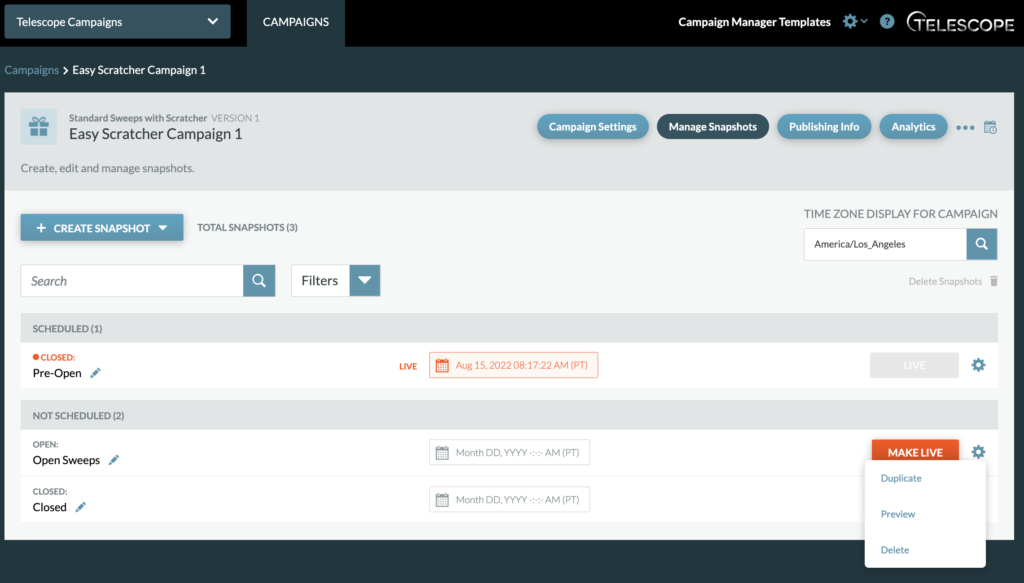
The Manage Snapshots tab displays the Snapshot Dashboard. The Snapshot Dashboard displays all snapshots for a campaign as well as is where you can create new snapshots and schedule snapshots.
Once on this tab, you can also access the Campaign Settings, Publishing Info, and Analytics tabs.

Duplicate, Preview, and Delete Snapshots
To a duplicate, preview, or delete a snapshot, click the cog next to the “Make Live” button and hit the desired action in the drop down options.
Note: Duplicate Snapshots are a complete copy of the original snapshot they are duplicated from, but with no scheduling info (i.e. was live, live, or scheduled).
For Best Practices: After testing a snapshot, use a NEW duplicate snapshot for the live sweepstakes. Doing so will ensure only “real” data shows in the analytics. Snapshot analytics show data from all time active and if a snapshot is used for testing and the live sweepstakes, testing data will be in the report.
Make Snapshots Live
At any point you can click “Make Live” and the corresponding snapshot will automatically go live.