Once the Campaign Settings are configured, you can start creating snapshots by clicking on the “Manage Snapshots” button.
On the Manage Snapshots tab, you can:
There are 2 Snapshot Types:
- CLOSED – This can be used before, after, and in-between polling events and it features an optional countdown timer.
- OPEN – This contains one poll question with two or more answer options. The end user will be able to select or vote on one of the answer options and can only vote once.
- Note: If there is no authentication and an end user clears their browser cache or uses a different device or browser they can vote again since the user is not logging in with a unique identifier.
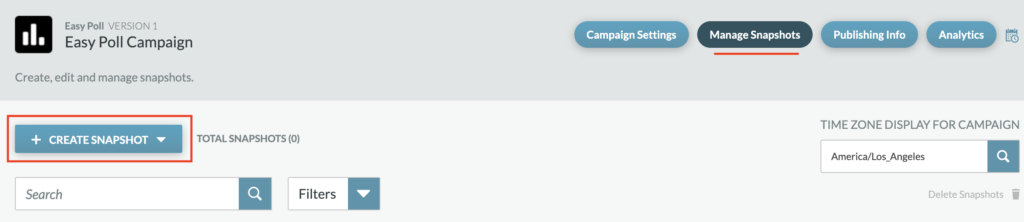
To create a new snapshot, click on “+ CREATE SNAPSHOT” and choose the snapshot type from the dropdown menu. Creating a snapshot will automatically open the Snapshot Editor where you can configure the poll.
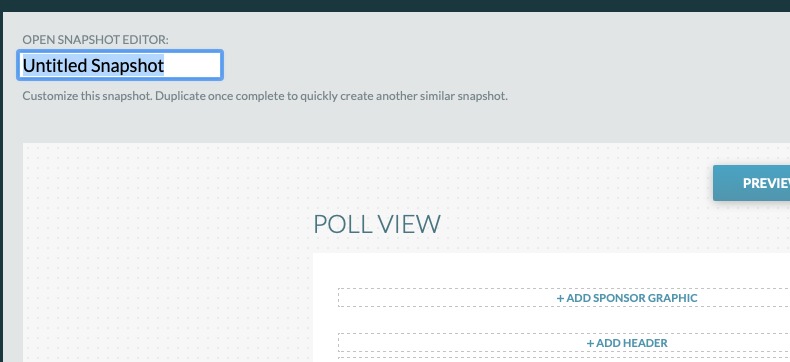
Change the snapshot title by simply clicking on the title text. This can be done either
- a.) on the main Manage Snapshots page or
- b.) in the top left corner while in the Snapshot Editor.
a.)

b.)