
To view your campaign Analytics, click the “Analytics” button on the upper right hand corner within the campaign.
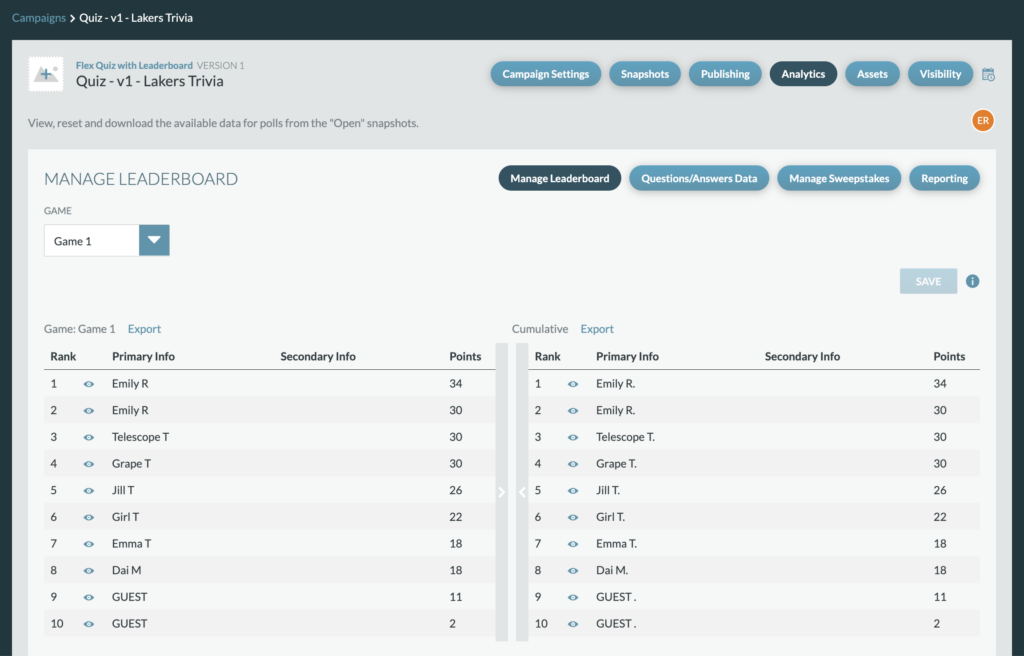
Manage Leaderboard
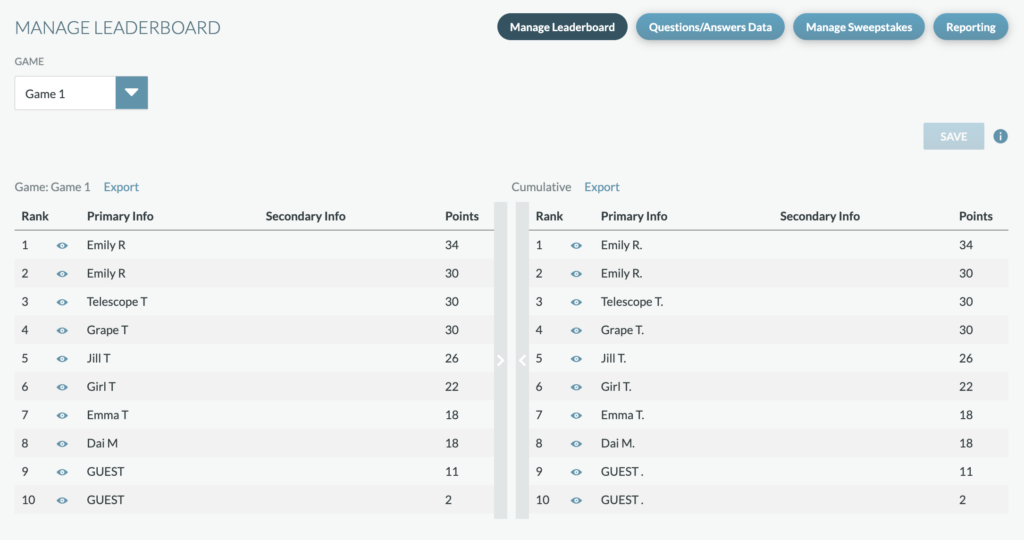
View both the game specific leaderboards and the cumulative leaderboard. From Manage Leaderboard, you can:
- View a game’s leaderboard by selecting the “Game” from the dropdown (pulls the open snapshot name)
- Hide a user being visible from the leaderboard by clicking the “eye” icon next to their name. Leaderboard must be saved after a change is made.
- Export a game or cumulative leaderabord
Questions/Answers Data
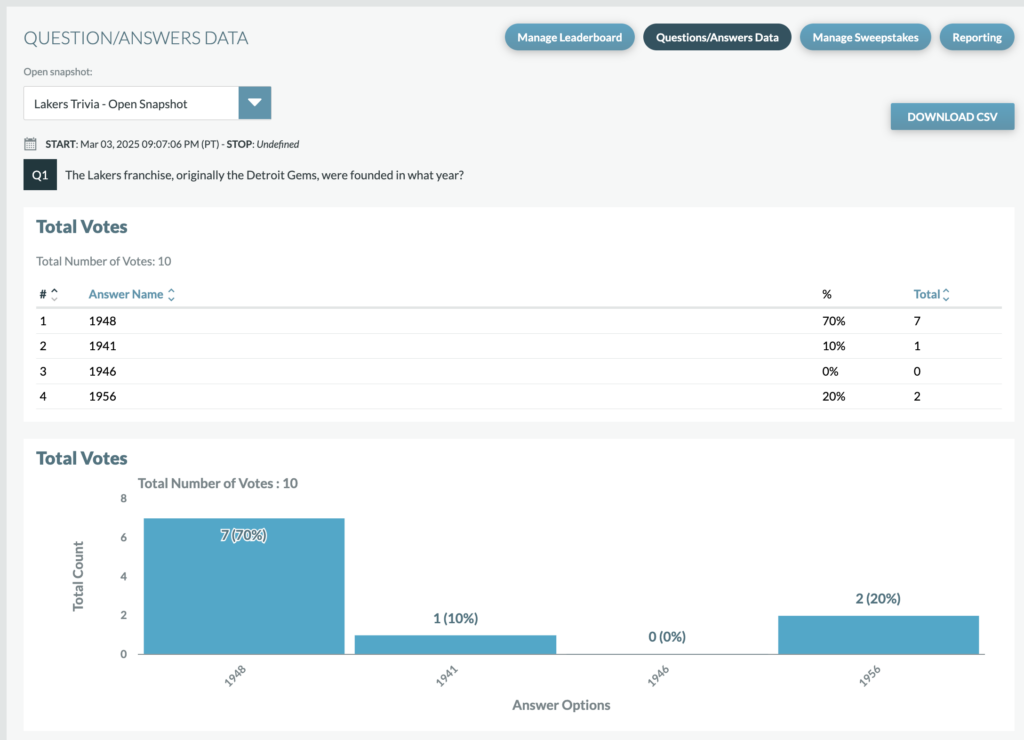
From the Questions/Answers Data tab, you’ll by default see the table view of the analytics for the most recent live snapshot. You can select different snapshots and change the view to be chart view. A few reminders:
- When naming snapshots, we recommend that you include identifiable information/date within the snapshot name. Snapshot names can always be updated and updates will be reflected on the Analytics page.
- Analytics are only available for open snapshots that are live or have previously been live.
- There is also an option to choose “All Snapshot” which will show all analytics across the snapshots.
Below the snapshot dropdown you’ll see the “Start” and “Stop” time for the snapshot, with the Start time representing when the snapshot was pushed live and the End time being when the snapshot was not longer live. If the snapshot is still live, the End time will show as “Undefined.”
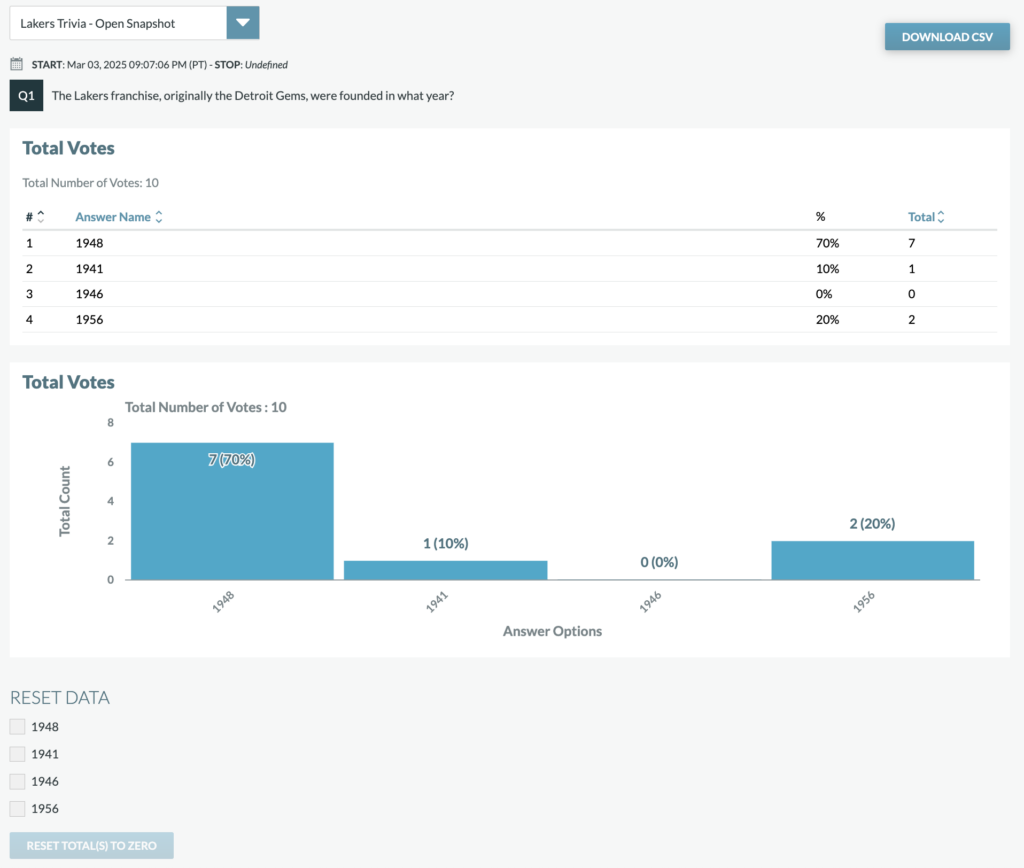
Analytics for each snapshot will include the following for each match-up within the snapshot:
- Total number of votes (total overall votes across contestants)
- Total votes by contestant option
- Percentage of total votes by contestant option
By default, data will be shown as a table but can be changed to be views within a chart.
Resetting Vote Totals
Producers have the option to “Edit” a match-up’s votes to reset the totals back to zero. This is only recommended if vote is being tested prior to being promoted or made public. This cannot be reversed once completed.
Download CSV
Selecting the “Download CSV” button will generate a downloadable report of all the votes for the selected snapshot in a zipped CSV file.
Important Note: Windows users may need the Winzip program to open compressed Sweeps files.
Data columns include:
- Options (each Option will be listed here)
- Votes (this is the Total Votes the Option received)
- Percent (Percent of total votes the Option received)