
The Open Snapshot consists of four tabs, including:
Quiz – Onboarding
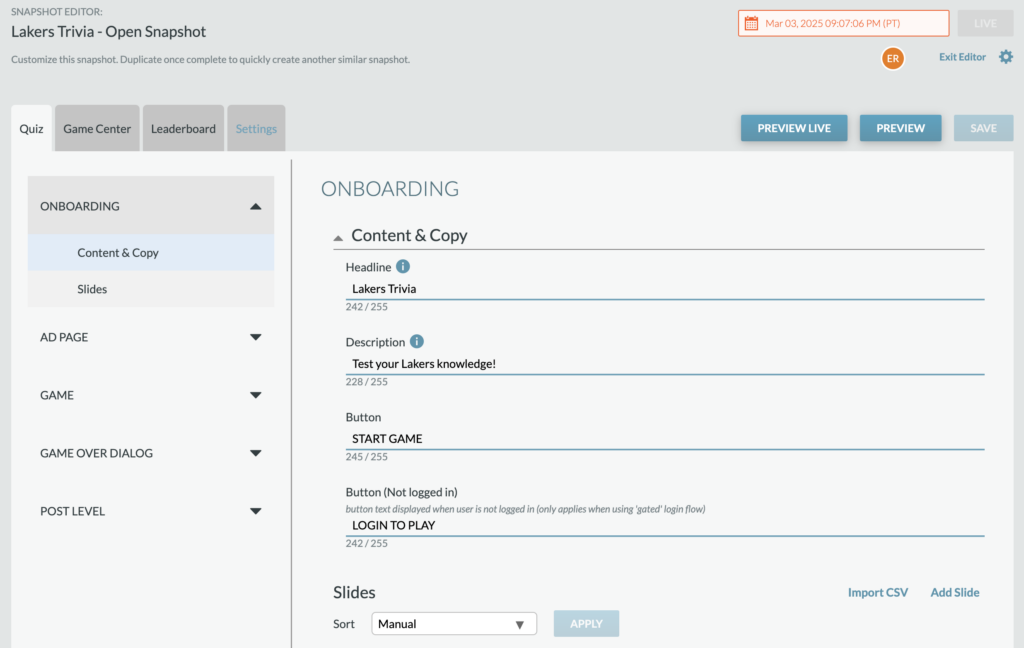

- Content & Copy: When a user first lands, they’ll view a Headline, description of the game, “start” button” and a button prompting users to login.
- Slides: Choose to include slides with additional information on how to play the quiz game. Each slide can include multiple items that can be numbered and include images.
Quiz – Ad Page
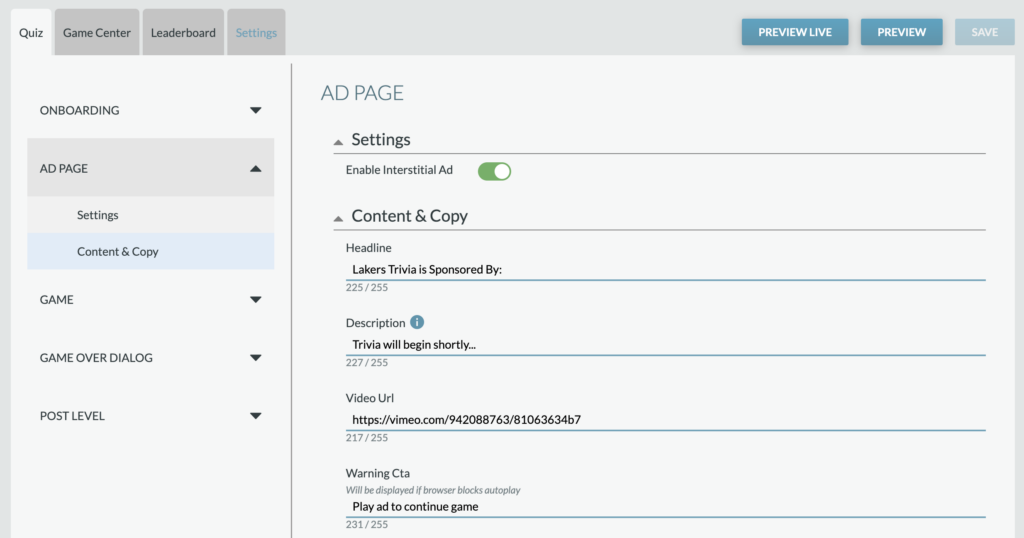

Settings: Enabling the interstitial ad will include a video ad that a User will watch after clicking Start Game but before viewing the first question of the quiz.
Content & Copy: If the video ad is enabled, set a headline and description that will live above the ad.
- Video Url: Include the video URL for the ad here.
- Warning Cta: If a User has ad blockers on and a browser blocks the add, this warning message will be disaplyed to the User.
Quiz – Game
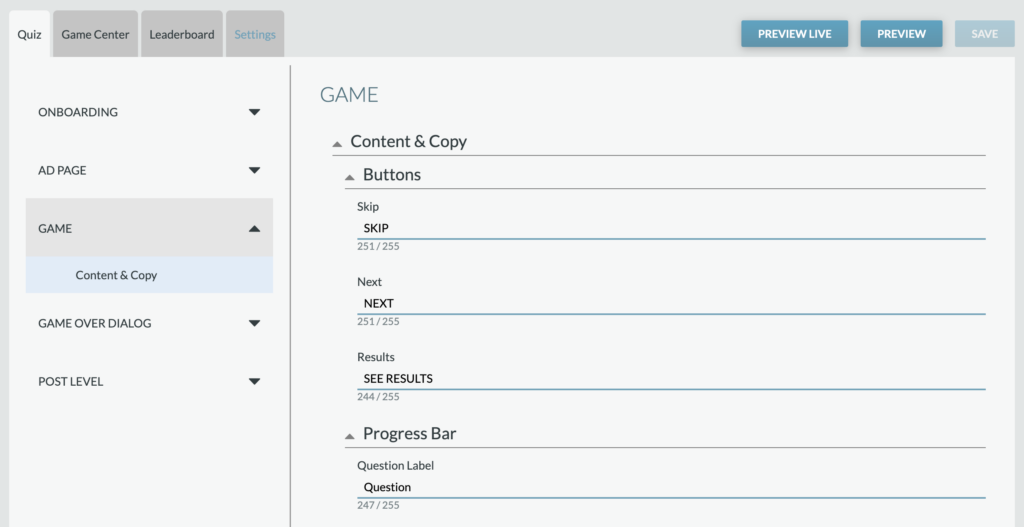
Content & Copy: Includes the copy for the Next, Skip, and Results Button, as well as the Progress Bar’s Question Label.
Quiz – Game Over Dialog
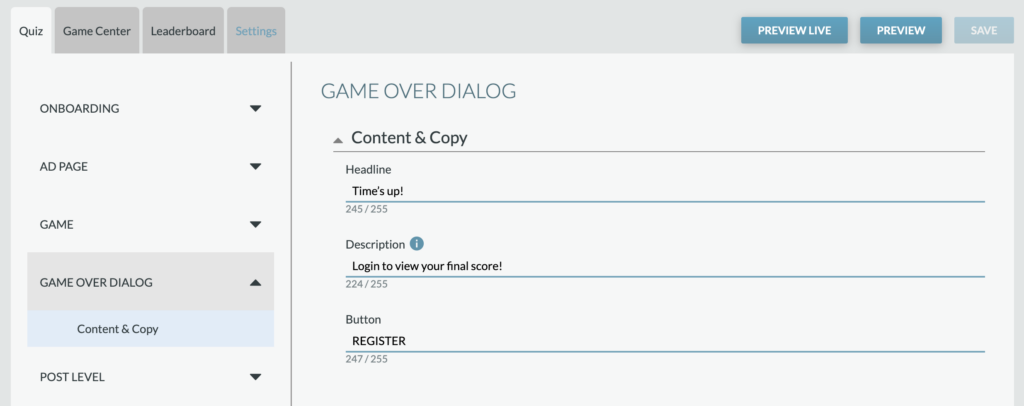
Content & Copy: When the game has ended and a User is not logged in, a modal will appear over the game to prompt a user to login. Copy for the Headline, Description, and Button
Quiz – Post Level
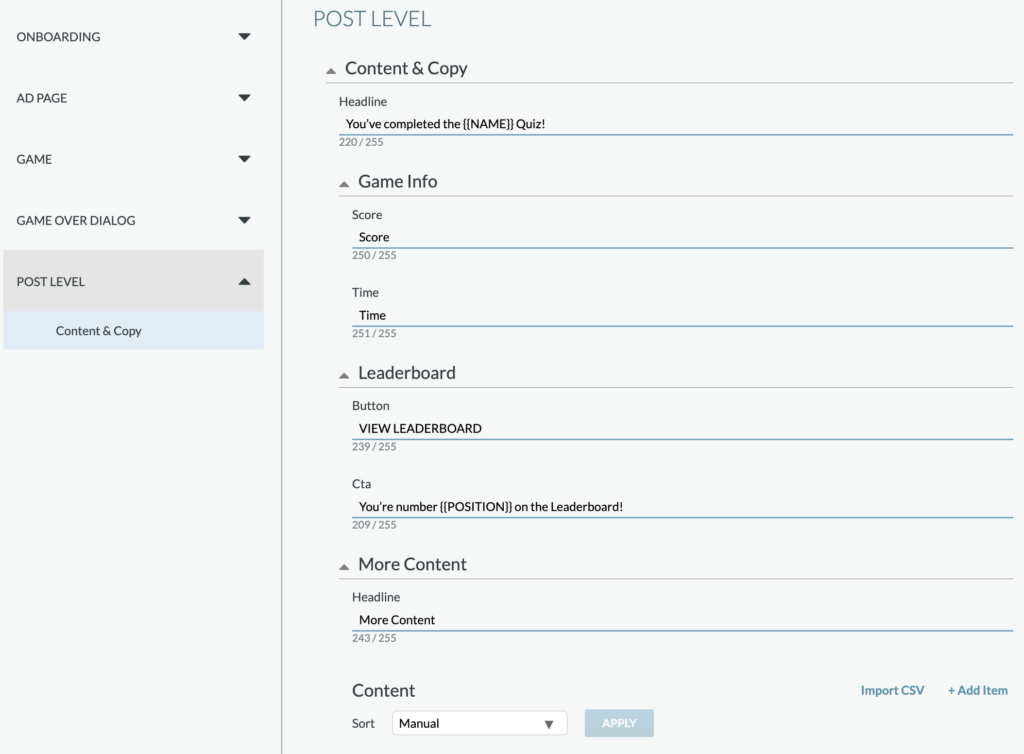
Content & Copy: Once a user has completed the game quiz, they’ll be served the Post Level view, including their score and option to view the leaderboard. Customizable copy for the view includes the Headline, Score label, Time label, view Leaderboard button, and Leaderboard CTA.
Note that the {{NAME}} used within the leaderboard is set from in the Game Center settings.
Content: Include additional content for Users to discover. Each Item includes an option image, copy to describe the content and the URL to the content (e.g., include a link out to an article related to the content of your quiz game).
Game Center
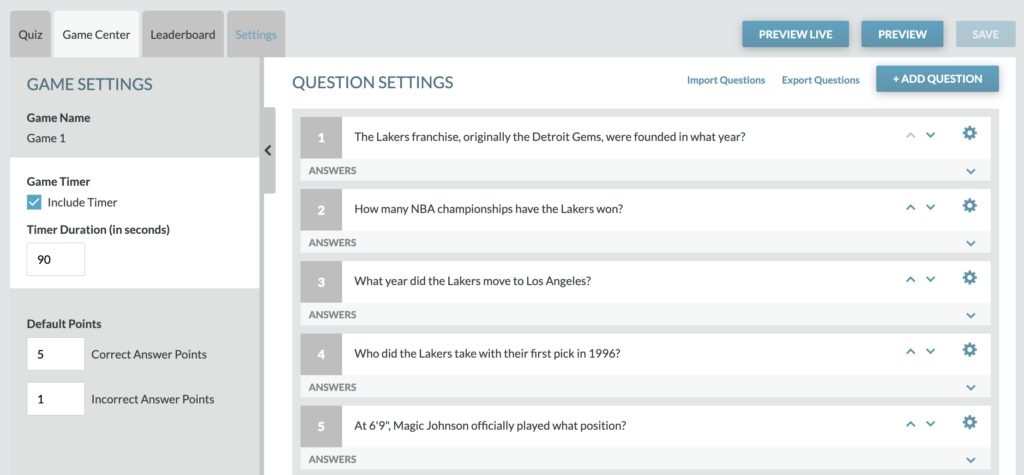
The Game Center includes all your questions/answers and identifies the correct answer for each question. The Game Settings will set the timer duration (if enabled) and default points.
Game Timer: The Time is optional and adds some urgency to the quiz game. Set the time duration in seconds. Once the timer ends, the user will be served a times-up modal.
Default Points: Set the default points for correct answers and incorrect answers (incorrect answers can be 0).
+ Add Question: Click the “+ ADD QUESTION” to add each question.
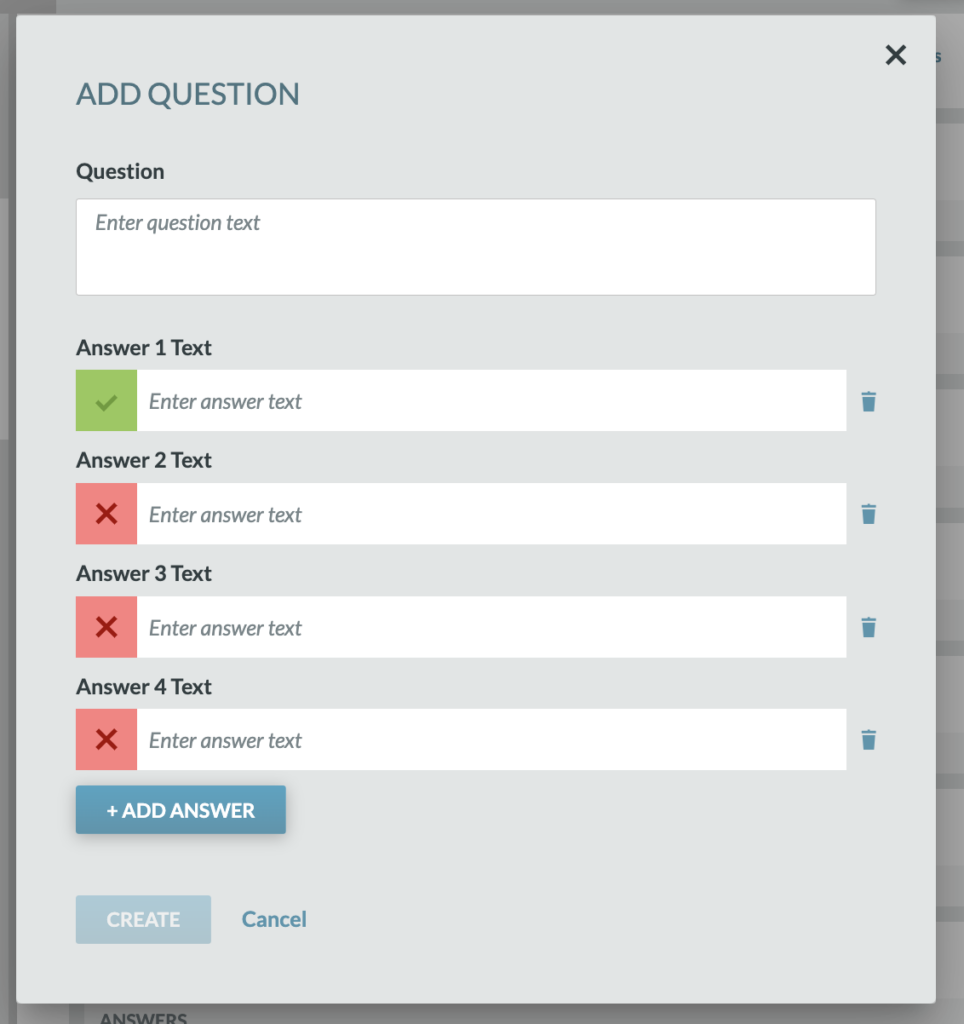
Add Question Options: Includes the copy for the question and the option to +ADD ANSWER for each possible answer. *Note: If enabling the 50/50 bonus boost, it’s recommended to include each least 4 answer options for each question and have the answers options be divisible by 2.
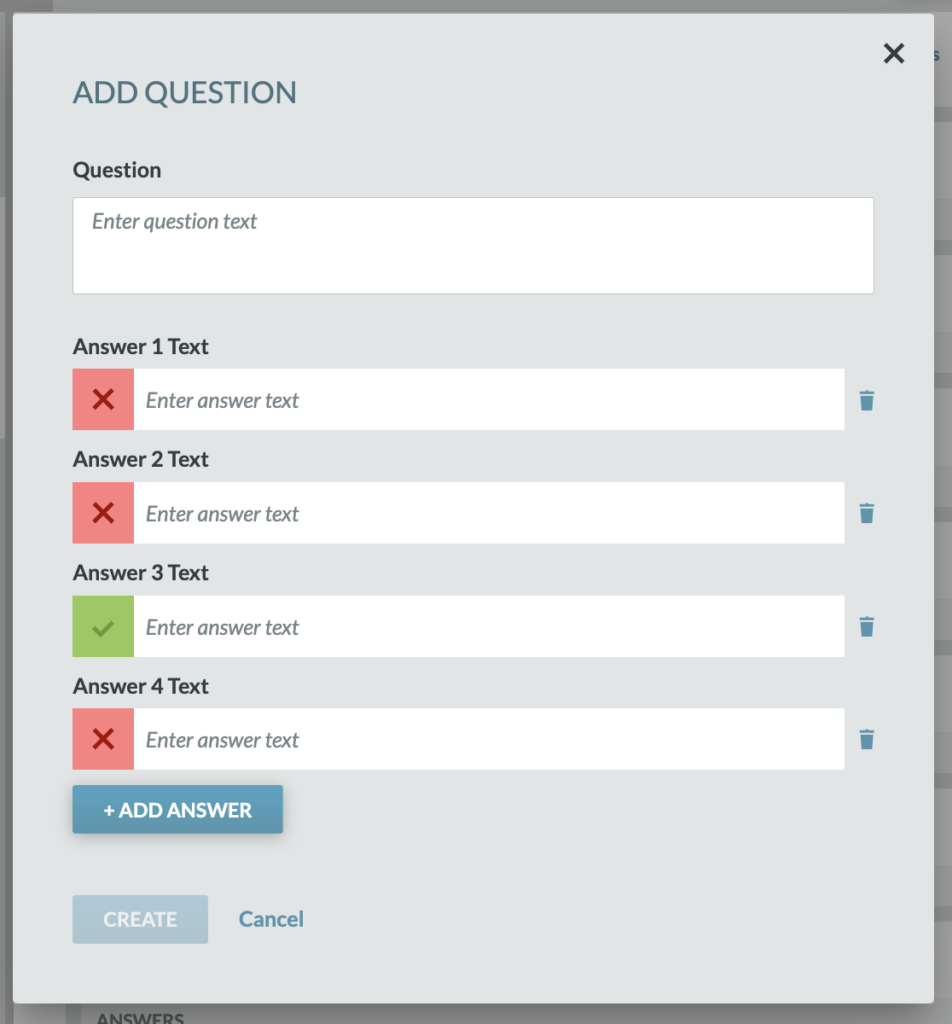
Identifying the correct answer: By default, the first answer added will have the “correct answer” checkmark applied. To change this to another answer, just simply click on the desired answer’s “X” icon to change it to be the “checkmark”
Leaderboard
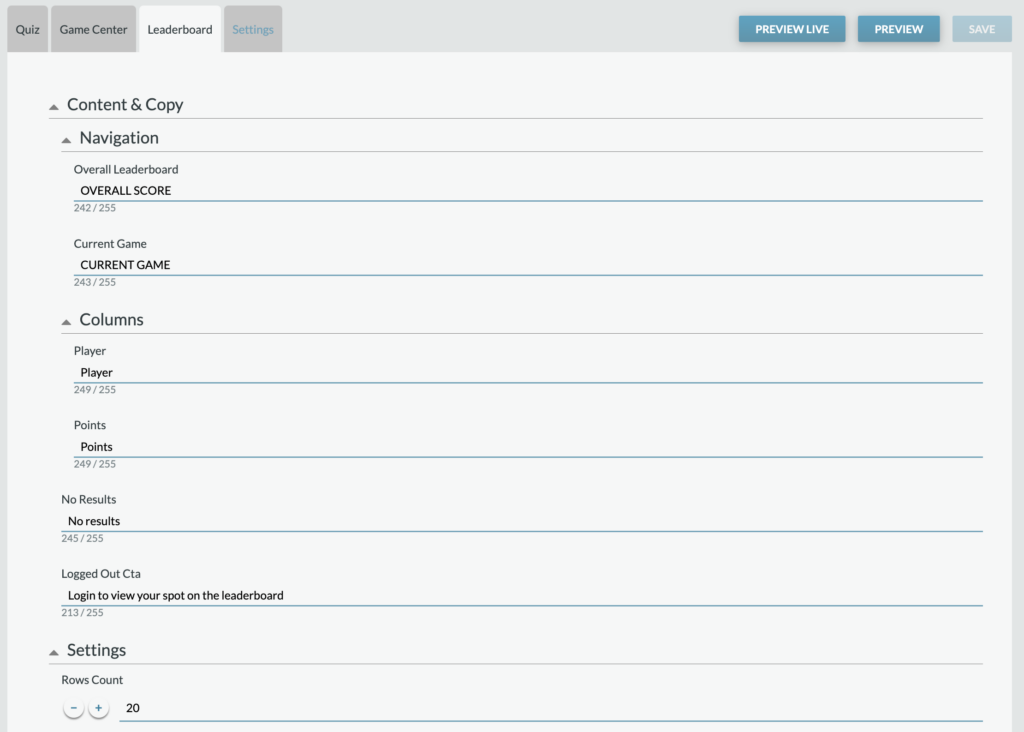
Content & Copy: The Leaderboard will display the most up to date list of Users scoring the leading points. Under the Leaderboard tab, customizable copy includes the Navigation’s Overall Leaderboard label/Current Game Label, Column labels (Player, Points) and if there are No Results or the CTA for Users who are not logged in.
Settings: Set the number of Users being displayed by adjusting the number of rows displayed.