
The Theme tab includes a majority of the campaign styles settings for the Quiz. Theme settings are broken down into the following sections:
Fonts
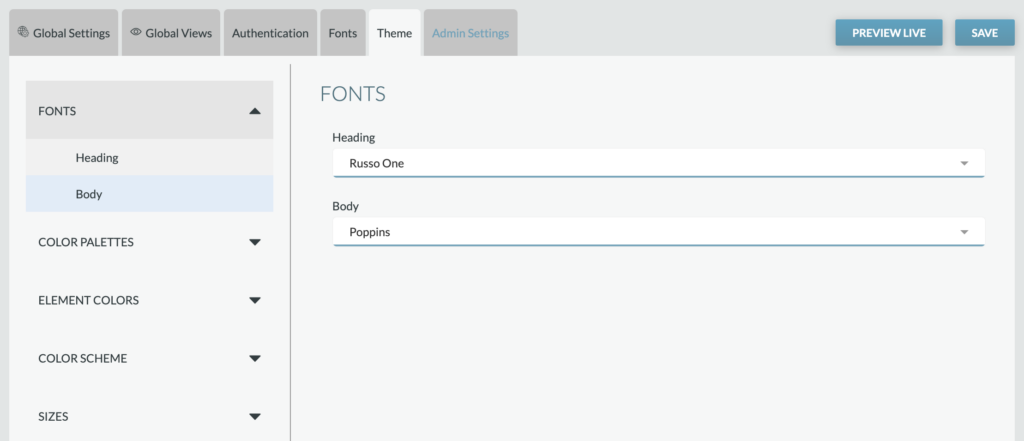
Heading: Select the font family desired for all heading copy throughout the application (e.g., Open Snapshot header, Thank You modal header)
Text: Select the font family desired for all text copy throughout the application (e.g., descriptions)
Reminder: Custom fonts can be added from the Fonts tab. Once added, they’ll appear as options within these dropdowns.
Color Palettes

The Color Palettes sub-tab includes the Custom color values for the Quiz application. Each color can be set by clicking the dropdown selection next to the color. The value corresponds with specific elements within the Quiz application.
| Custom Color Palette Value | Sets the following elements: |
| 50 | Onboarding: Onboarding number circle text for numbered list slides |
| 100 | Onboarding: Carousel container background Leaderboard: Background color for navigation buttons on hover (light mode). Quiz: Background color for the user’s total game score box |
| 200 | Quiz: Default option background colorDisabled “Next” button |
| 300 | General: Link – hover state text color Quiz: Bonus button – hover state background color Default option – hover state background color Skip button – hover state background color Next button – hover state background color Results button – hover state background color Leaderboard: Background color for the current user’s row in the leaderboard table. Background color for navigation buttons on hover (dark mode). Background color for active navigation buttons. |
| 400 | Unassigned – may be used in future updates |
| 500 | General: Link text color Quiz: Bonus button background color Enabled “Next” button background color Game points color Onboarding: Onboarding carousel navigation dots background color Onboarding number circle background for numbered list slides “Start Game” button Leaderboard: Text color for the rank column when the row does not belong to the current user. Default border color for navigation buttons. Post Level: Stat value (e.g., score or time) in the game stats – text color More Content – Background color for the active dot in the carousel navigation. Login/ Registration: Sign in / Register with Email button background color “Don’t have an account”/ “Already have an account” link |
| 600 | Login/ Registration: Sign in / Register with Email button – hover state background color “Don’t have an account”/ “Already have an account” link – hover state |
| 700 | General Navigation menu – hover state background color |
| 800 | Post Level: Game stats container displaying score and time – background color |
| 900 | Onboarding: Background color for the active dot in the carousel navigation |
Element Colors
Element Colors sub-tab includes settings for elements that may require specific colors outside the color palette.

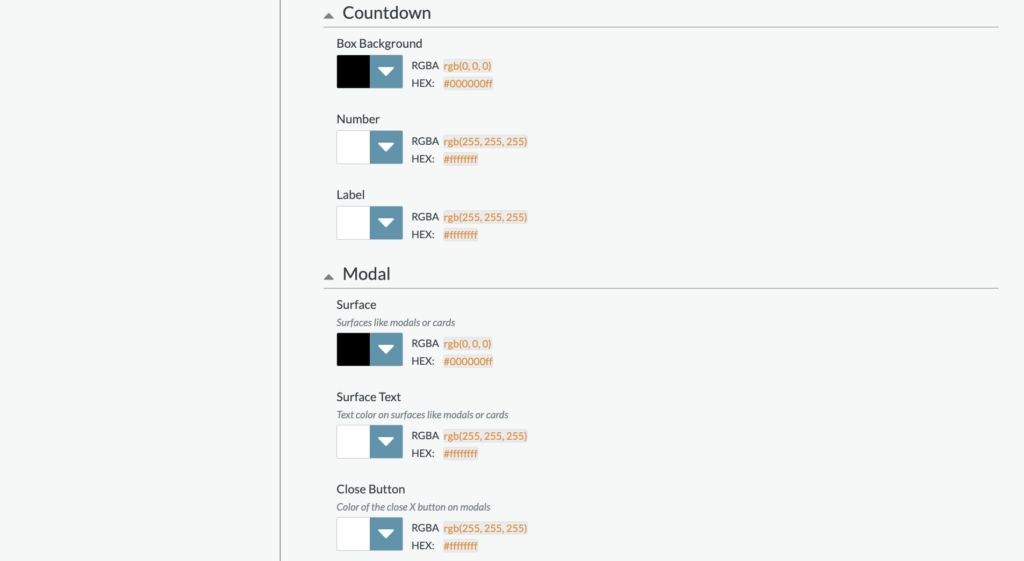
App Background: Sets the main app background across the Quiz application
Body Text: Sets the default app text color, including:
- Headline text color
- Description text color
Placeholder Text:
Focus: The color of the outline displayed when an interactive element is focused. Accessibility feature.
Borders: Sets the default color for borders, including:
- Mobile/Tablet
Countdown Clock
- Box Background
- Number
- Label
Modal
- Surface: Sets the color for surfaces like modals or cards, including:
- Sign in/Sign Up modal background
- Sign in/Sign up modal headline, input label, email login headline
- Thank you modal headline
- Thank you modal share CTA
- Close Button
Color Scheme
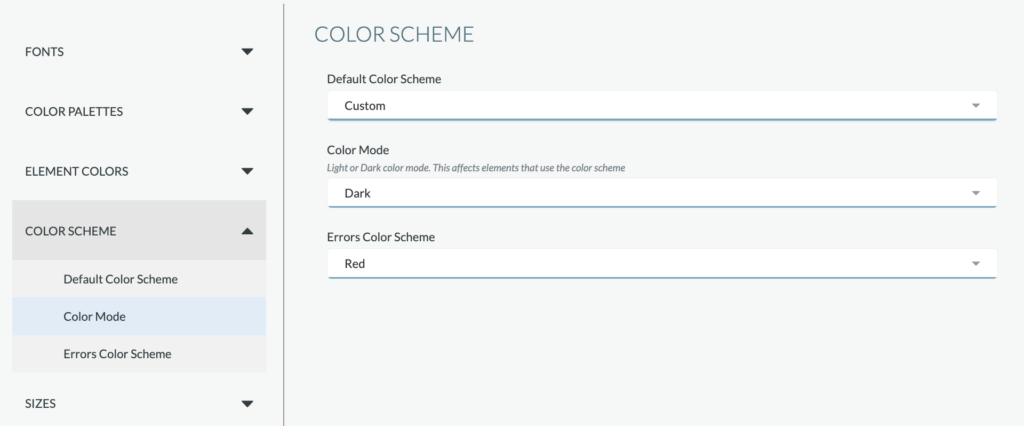
The Color Scheme default is set to the “Custom” color scheme, which includes the colors identified within the Color Palettes’ sub-tab. If desired, the color scheme can be adjusted to a preset color scheme. Preset color schemes include:
- Black
- Blue
- Cyan
- Gray
- Green
- Purple
When a color scheme other than Custom is selected, the scheme will override colors selected within the Color Palettes sub-tab.
Sizes
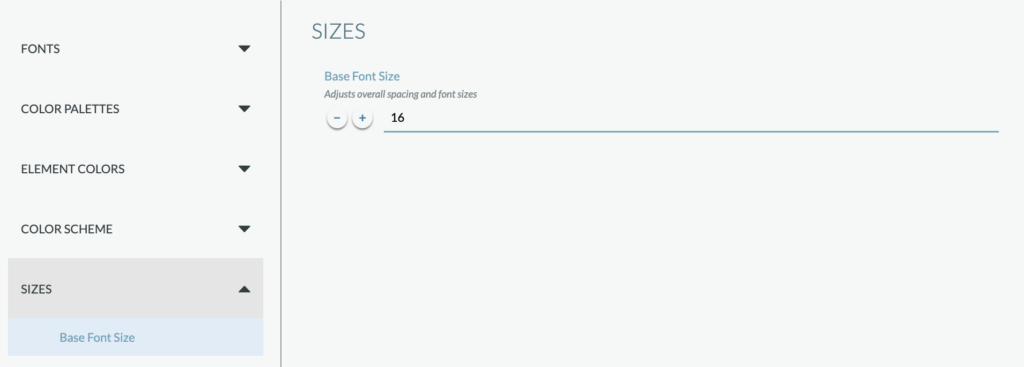
Set the base font size (based on mobile).