
The Open Snapshot consists of four tabs, including:
Voting
Includes the category info/title and contestant/vote choices info.
Contestants: Includes the Category Title and the Contestants Settings.
Incomplete View:
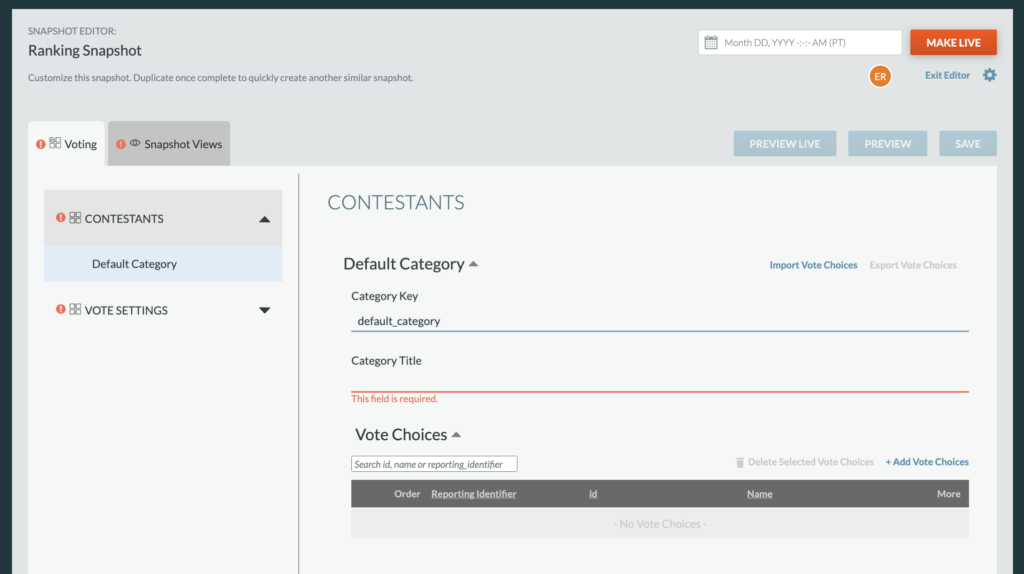
Category Title added should just be a general description of the category of choices for which the Users will select their rankings.
Completed View:

Vote Choices will include all the vote choices available for a user to rank.
- To add a new vote choice, click “+ Vote Choice“
Incomplete Vote Choice:

- From here, you’ll want to include:
- Reporting ID (no spaces or special characters) which will only show when looking at the Rankify analytics/reporting data — be sure to make it identifiable on its own
- ID and Name – should be the same, the Name will be used on the UI
- Description – this is a short secondary identifier for the vote option and this is an optional field
- Image – these are the images used on the Rankify UI, all images should be similar and the same size (min 800px width)
- Share Image – these images are used for when a user shares their Rankify picks
- Tip: we recommend using the same image as above unless there is a need to use specific share images.
- Hide – If needed, there is an option to hide a vote choice from the UI (e.g., if one is no longer in the running to be picked but data from prior wants to be maintained and documented)
- Tip: If there is a need to remove a vote choice during a campaign, we recommend using this hiding option – we never want to delete vote choices during a live campaign.
Completed Vote Choice:

Vote Settings
Rankings: These settings define the amount of “votes” each vote choice receives when a user places them in a certain ranking position (e.g., if a user places Steph Curry in the 1st ranking position, the Steph Curry option should receive the most amount of “votes”)
- The number of Rankings added will determine the number of vote options that a user will rank and those are the only vote choices that will receive “votes”
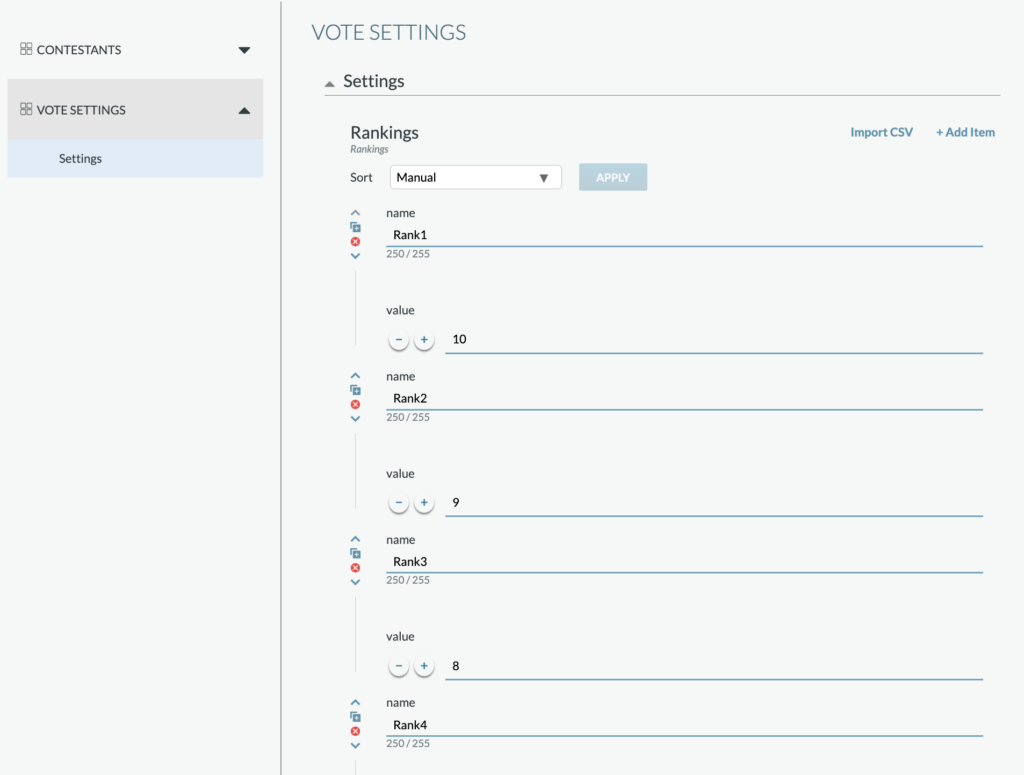
- Example 1: if you have 10 possible vote choices and you would like users to rank them from 1-10, you would need 10 rankings added (Rank1 would earn 10 value and Rank10 would earn 1 value) — this would be weighted.
- Example 2: if you have 10 possible options and you would like a user to select 3 of their favorites with no particular order, you would need 3 rankings added (Rank1, Rank2, and Rank3 would all have a value of 1) — this would be unweighted.
- The total number of desired ranking positions should equal the most amount of “votes” the ranking position #1 would receive
Incomplete Rankings View:
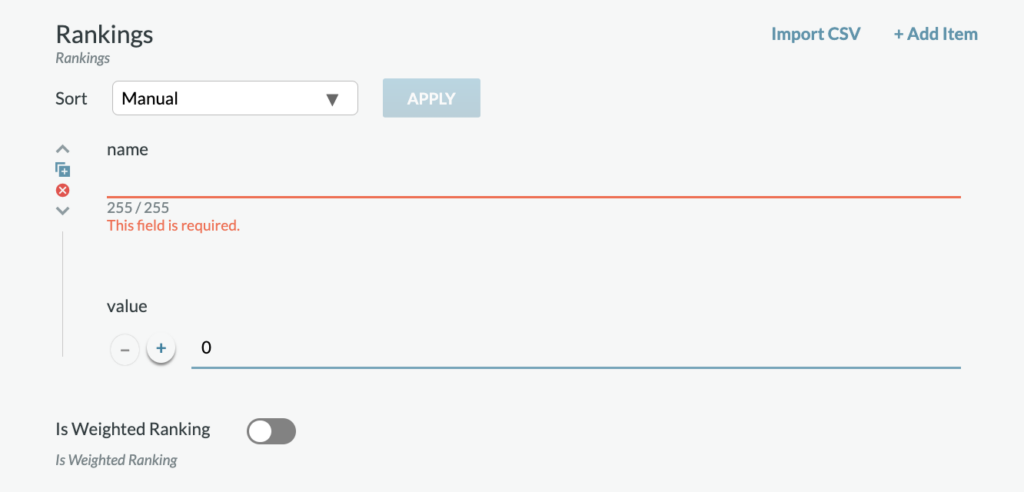
If Weighted Ranking: When set to “true”, the ranking will have a numbered ranking and each option is weighted based on which position the vote choice is placed into.
The Rankings and Weighted values coordinate with one another. If a Rankify is set to NOT be weighted, best practice would be to have your rankings worth an equal value (e.g., 1) since there is no position higher than the other.
If you have any questions related to these settings, please contact your Telescope representative.
Rankings Completed View (10 rankings, weighted):

Snapshot Views
The Snapshot Views tab includes a majority of the copy and some styles for each iteration of the Rankify vote.
Ranking Page
- Content & Copy: Set the copy for the headline, description, and the submit button that will appear when a user lands on the Rankify and views the available vote options.
- Vote Options styles: Set the color for ranked item, not ranked item, hover item, main divider color and the divider color

Thanks Page
- Content & Copy: Set the copy for the headline on the Thanks Page, which is served after a user submits their ranking.
- Watch Ad: Set to “active” to include a stop ad between a user submitting their ranking and the Thanks Page
- This is an opportunity for an ad spot that includes a headline text, image, and link-out (ad link)
- The duration of the ad (in seconds) is also set from this tab

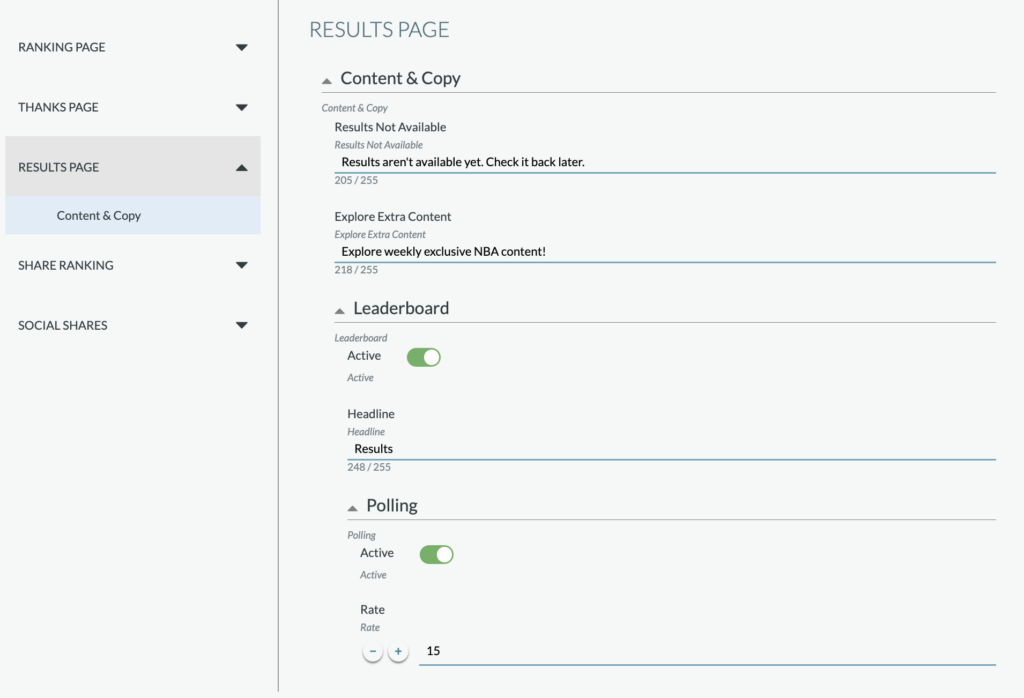
Results Page
- Content & Copy: Set the copy for labels on the Results Page, including Results Not Available and Explore Extra Content.
- Results Not Available – would be served when results of the Rankify are not yet available or revealed
- Explore Extra Content – this label lives above the Extra Content section towards the bottom of the Thanks Page
- Leaderboard: Set to “active” to include the leaderboard and set the copy for the Headline
- The Polling section should be set with the recommended settings, but if you have questions about this setting, please contact your Telescope Representative
Share Ranking
- Message: This copy will include a brief CTA to the user for sharing their ranking and should include that a user must first download the ranking first.
- Modal: Set the copy for the share modal that appears after a user clicks to share their ranking — includes a headline, description, download button, share image text and an error message.
- Here you can also define the Exported File Name
- Content & Copy – Placeholder Image: It is reccomended to use a test image from the Rankify app, acquired by moving through your Rankify (once set up is completed) and download a share image to use here as a placeholder.

- Settings: Includes the toggles to define if the Facebook Share and Twitter/X Share are enabled.
- Content & Copy: Set the copy for the CTA (e.g., should be short, can keep as the pre-set copy) and hashtag. There are individual settings for Facebook and Twitter, which include the URL, copy, aria label. The native share is used for when a user uses their device’s native sharing capabilities.
