
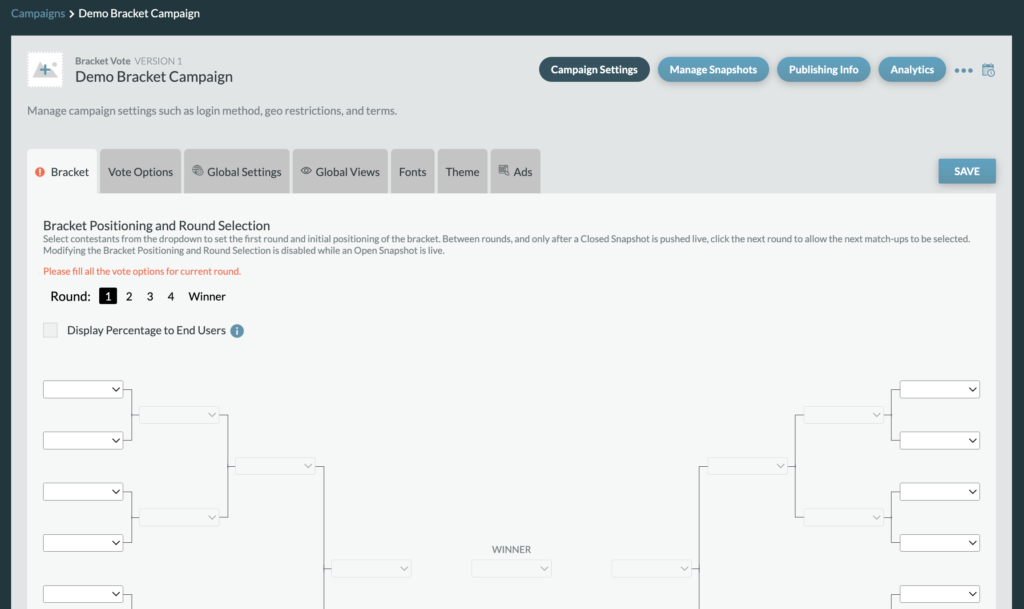
The first two sections under Campaign Settings include the Vote Options and Bracket tabs. Both of these tabs are crucial sections of campaign settings and will be required before pushing a bracket’s first round live.
Vote Options
Producers will first navigate to the Vote Options tab to add all possible contestants and their associated information.

- Producers have the option to add each vote option one-by-one or prepare an excel doc to be uploaded from Import Vote Choices.
- Category Key and Category Title settings are pre-set and should not be adjusted.
Import Vote Choices
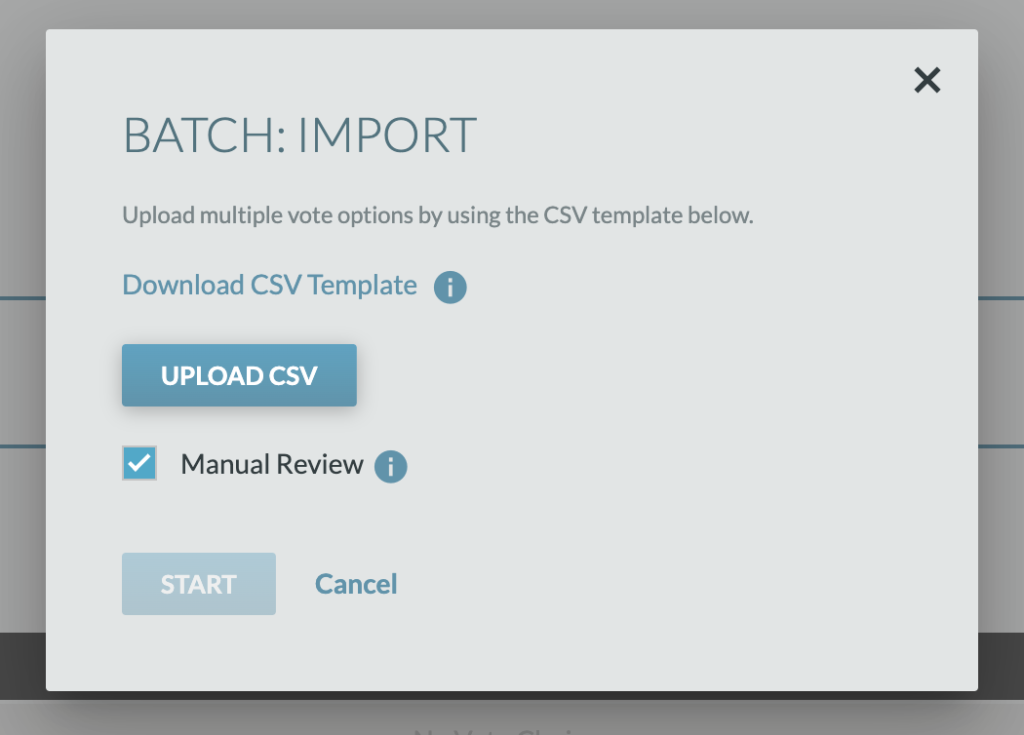
Once clicking Import Vote Choices, a modal will appear with the option and CTA to download the CSV template. Once downloaded, complete the template, save the file, and navigate back to the Import Vote Choices Modal to upload your file. From the modal, a producer can choose to uncheck the Manual Review, which will bypass opening each Vote Options modal.
Vote Choice Fields
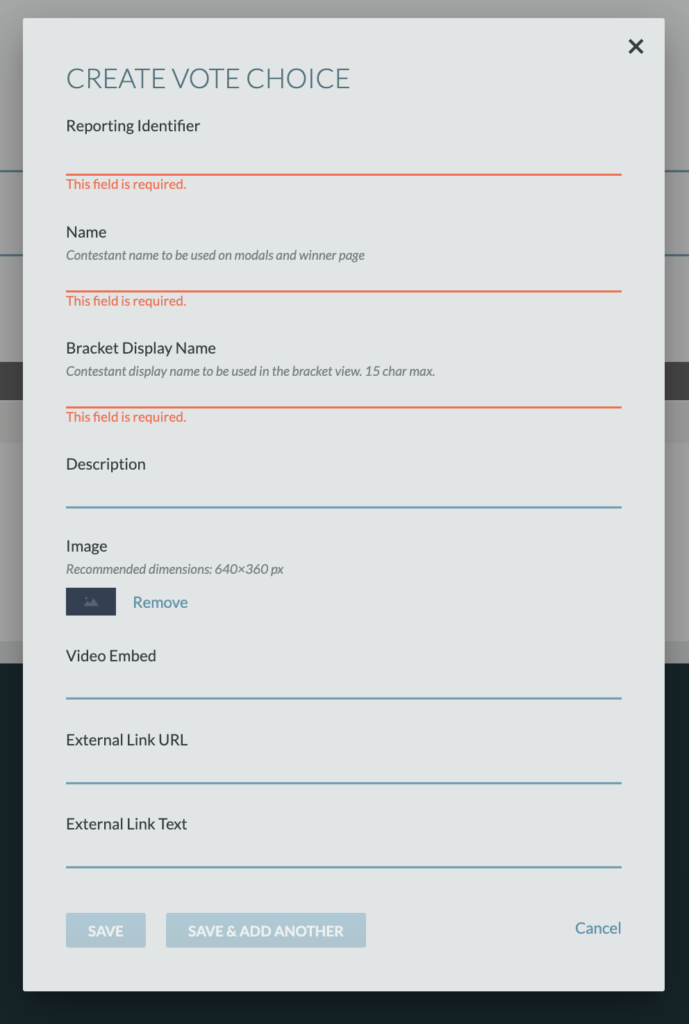
Reporting Identifier: The reporting identifier is required for each contestant and will be used on the analytics.
Name: This is the contestant name to be used on modals and on the winner page. This name can be longer in length.
Bracket Display Name: This is the contestant’s display name, which will be used on the bracket view. This name has a max 15 character limit to avoid styling issues on the bracket view.
Description: This optional field contains the contestant’s description, which will appear within the contestant’s modal.
Image: A contestant image is optional and will appear on the bracket view and within modals (if a contestant video is not included). The image field can handle different image sizes, but we recommend 16:9 aspect ratios at 640×360 px, but if a different aspect ratio is selected, we suggest keeping it consistent throughout contestants.
- If no Contestant image is loaded for the vote option, the Placeholder Image (under Global Views > Bracket Grid) that displays on future rounds will display in place of the vote option thumbnail in the grid.
Video Embed: If a contestant has a video to include within the bracket, an embed video URL would be entered within this field and a contestant’s video would appear within the contestant modals.
- If a video embed is used, the video thumbnail only appears in the Contestant Vote Modal. Please ensure an image is also loaded for each contestant when including a video embed.
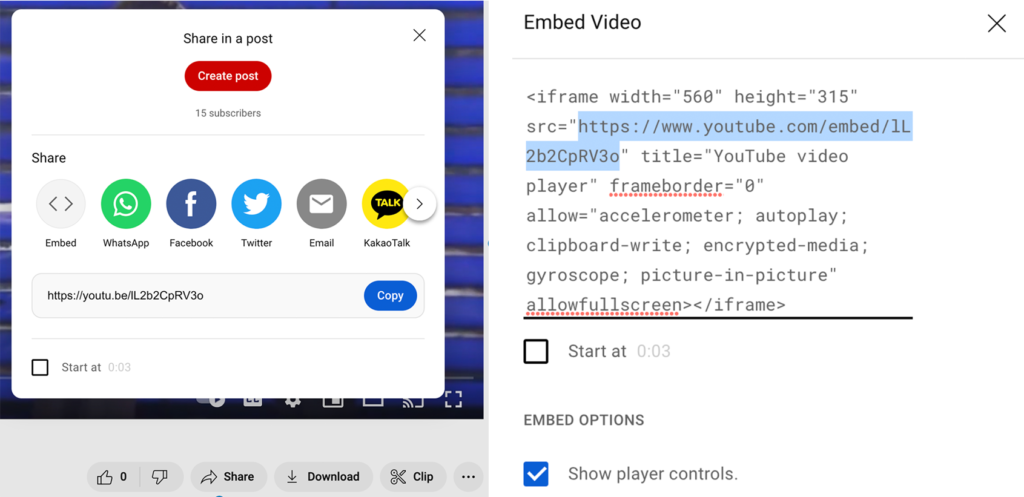
- Video embed URLs are not just the video URLs, they are usually obtained from the platform’s sharing options, then by coping just the URL within the embed code (e.g, a YouTube link may look like: https://www.youtube.com/embed/lL2b2CpRV3o)
See example from YouTube below:
External Link URL: Each contestant has an optional unique link-out from their contestant modal. Enter a valid URL into this field.
External Link Text: This is the text that will appear for the external link.
Bracket
From the Bracket tab, you will begin to build the bracket with the contestants added from the Vote Options tab. There is a dropdown for each possible position within every match-up.

- By default, the bracket will have Round 1 active upon creation.
- The dropdown pulls in the Name field from each contestant’s Vote Options settings.
- As you select a contestant for each position in the bracket, you’ll notice that once a contestant has been selected, they will no longer appear as an option as you move through the dropdowns.
- Once you’ve made all your selections, you can click Save or move to another tab to adjust other settings before clicking Save.
Display Percentage to End User
After a round has ended, there is an option to display the final vote percentages to the end user. To enable this feature, simply check the checkbox underneath the round navigation. Once checked, this will show all final vote percentages for all previously live rounds.