
Within this tab are the global settings that affect all snapshots within the campaign and include the following settings:
General
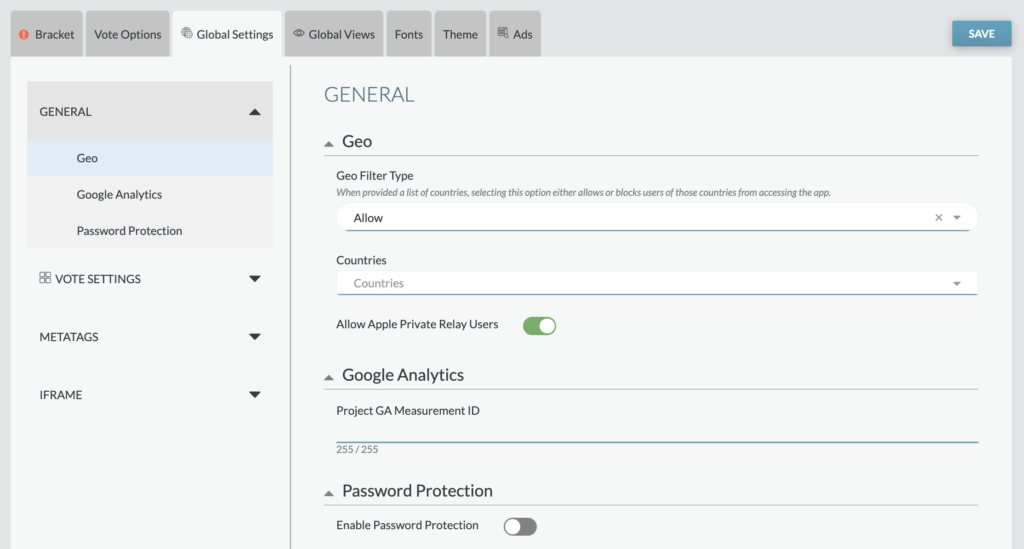
Geo: Allows you to control which countries have access to the campaign. You can either select Allow and choose countries who should be allowed access or select Block and choose which countries should be blocked from access to the campaign. If there are geo restrictions, a user accessing the URL from that country (per IP address location) will be served the Out Of Geo page.
Allow Apple Private Relay Users: This setting allows you to choose if you want to let users who utilize the Apple Private Relay functionality on their iOS devices to access the site.
- If this is toggled on, then users who are using the Apple Private Relay functionality will still be able to access the site, but their location will not be accurate in any reporting provided by Telescope or Google Analytics.
- If this is toggled off, then users who are using the Apple Private Relay functionality will not be able to access the site and will receive a message notifying them that this setting must be turned off to access the site.
- This field will be defaulted to toggled on, allowing users to access the site with Apple Private Relay functionality enabled.
- We recommend directing users to the Apple Support page to learn how to turn this off.
Google Tag Manager: To track your campaign analytics, you can create a Google Tag Manager (GTM) for the campaign. If you choose to use Google analytics, You’ll also create GA4 ID.
Password Protection: This will put a password page that will gate the site from outside users until the client is ready for launch or in between vote shows.
- If toggle is set to on, then a password page will be on the site. This will require a developer to set up the password page still and provide a username and password.
- If toggle is set to off, no password page will be on the site
- This field will default to off and the page will be accessible to all users who have the URL.
Vote Settings

Enable Registration: This setting allows you to add in a registration process for users, meaning that when users first access the site, they will be required to register and provide additional information (e.g., first and last name, state, zip code, etc.) that would not be presented with just a login. Once a user registers, they will only have to log in when re-accessing the site.
Enable OAuth: This is a custom authentication that would be added to your campaign by a Telescope Admin.
Metatags
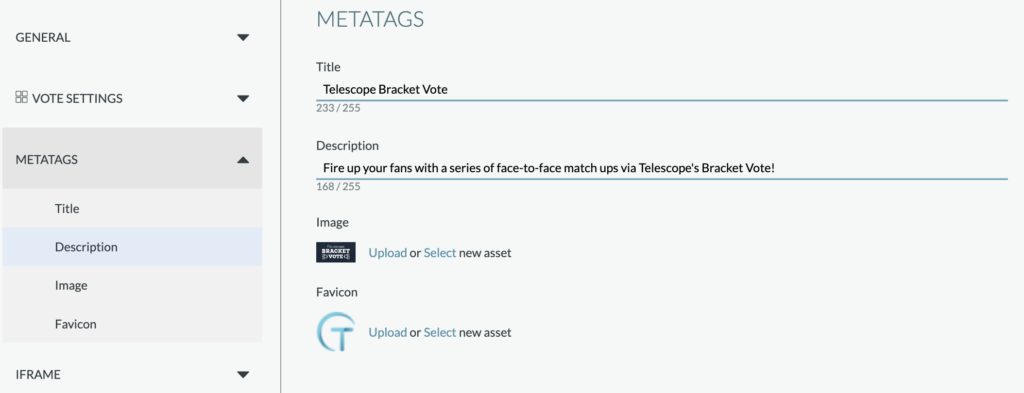
Metatags allow you to set up the metadata on the site so when it is shared or searched for the title, description, and image matches your branding guidelines for your campaign. Please note metadata will not be reflected on an iframed site, only the parent URL metadata is applicable unless you are sharing the iframe link directly. Defaults for these settings will be general Telescope product branding.
- Title: This is a text field and allows you to put any copy needed for your title (max 255 characters).
- Description: This is a text field and allows you to put any copy needed for your description (max 255 characters).
- Image: This is an image uploader field that will let you upload images from your device. Images should not exceed 100kb and a recommended size is 1200px x 630px (JPG or PNG).
- Favicon: This is an image uploader field that will let you upload images from your device. Images should not exceed 30kb and a recommended size is 32px x 32px (PNG).
iFrame
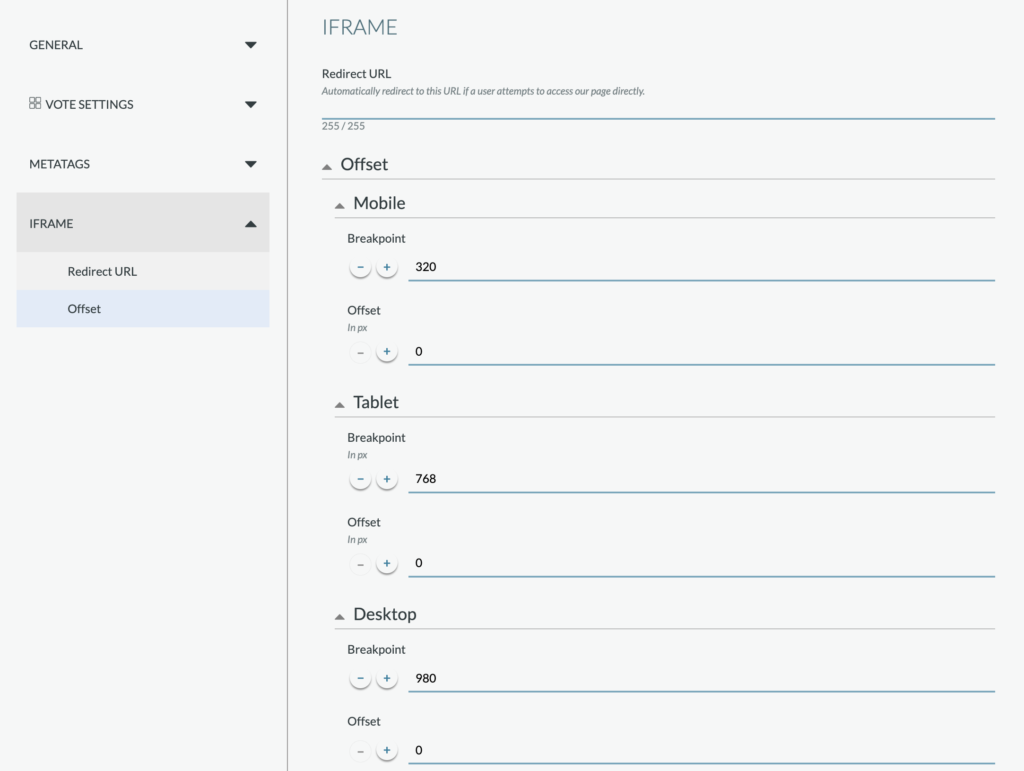
This section allows you to input the settings if you are iframing the product into a parent page.
- Redirect URL: This will allow you to choose a URL to redirect the user to if they try to hit the Telescope URL while it is iframed. For example, the user would try going to Telescope URL but they would then be directed to a client URL that includes the product. Default will be set to blank.
- Offset Mobile, Tablet, and Desktop: These fields will allow you to set a certain amount of pixel offset (positive or negative) to ensure the product page fits within the iframe across breakpoints.
- Breakpoint: this is a number picker field that will allow you to choose your breakpoint for mobile.
- Offset: this is a number picker field that will allow you to go negative or positive to meet your iframe needs for mobile.