
After logging in, you will be taken to the Clients page with a list of all the clients you have been given access to (access permissions are controlled via Connect and Campaign Manger). Different account permissions will have different access.
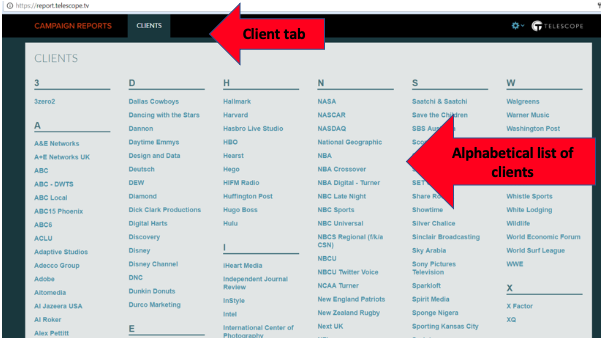
To get to your desired Campaign in order to run reports, first select the Client that the Campaign has been created under. Once you select the desired Client you will be taken to the client report home page which will display ALL Accounts under that Client.
Note: Campaign Reports will default to the first Account under that Client so you will need to actively select the desired Account.
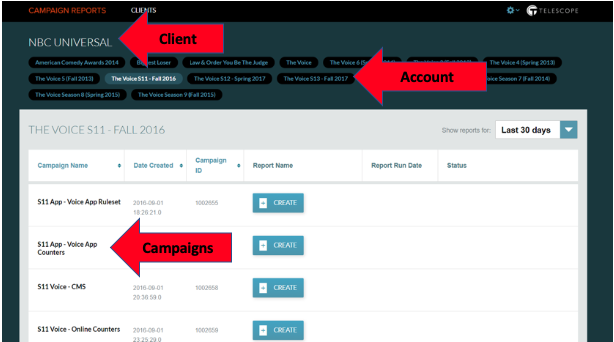
Click the Account that your campaign is under and you will then be taken to the home page for that Account. Accounts are listed alphabetically based on names given in Connect when created.
Under your Account you will then see all Campaigns under that Account. As noted, not all Campaigns will be relevant for reports as it will also pull in campaigns which are used for things like counters (E.g. CMS campaigns or Counters Campaigns). Campaigns will be listed in the order they were created in Connect (not alphabetical, unless created that way) as it uses the Connect Campaign ID number.