
A report job can have multiple reports within it. To create a report job for a campaign, select the +CREATE button next to the desired Campaign and you will be taken to the input screen.
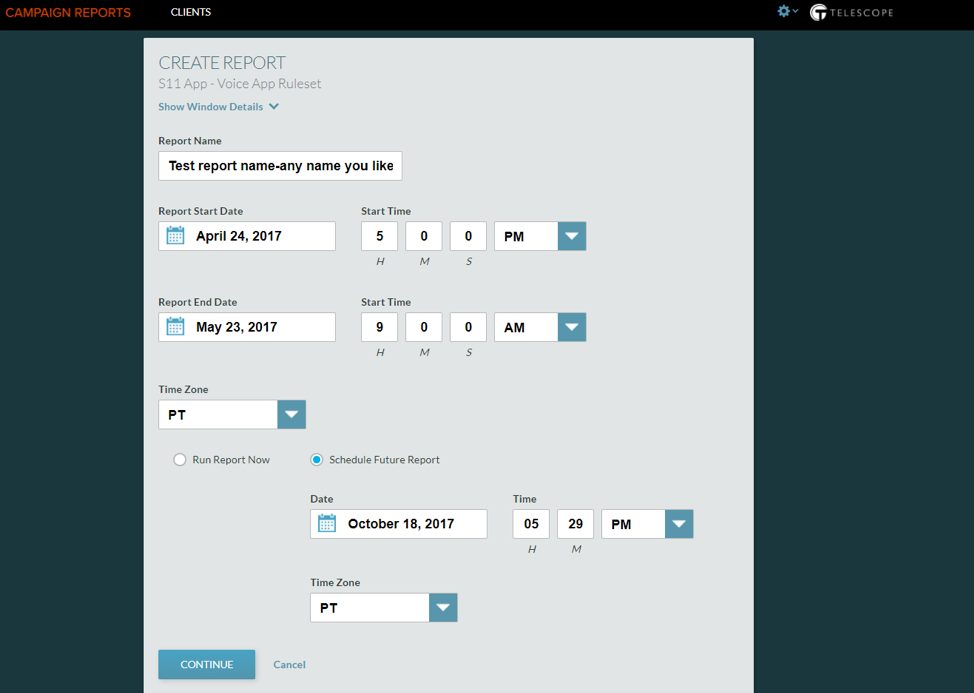
Parameters Set Up
Report Name: This can be anything you like. Don’t make it too long as it appears in the report output zip file name but pick whatever naming convention you like that helps you be organized. Once you have actively run/completed a report, you cannot edit the report name.
Notes:
- If file name is extremely long the downloaded file will not open automatically. This is due to the Operating System (mac or windows) which has a limit on how long the file path can be. Note: the file can still be opened manually from its location.
- If the report name is copy & pasted, the “Run Report” button is not activated.
- Do not include special characters in report names.
Start and End Time: This is usually the vote start and end time, unless you want to run a report for a slice of the window. This uses the 12-hour clock. Remember to select the desired Time Zone from the dropdown.
For reference, if you click “Show Window Details” (below the “create report” header) it will display ALL of the window sets set on the back end for that campaign. You should know the window you are running reports against but this can be a helpful place to remind yourself without having to go into connect.
Run Report Now: Pressing this will will start running the report once the next Report Selection page has been completed. This start time must be in the past. Alternatively, you can Schedule Future Report.
Note: for reports that you “Run Now” you can set the end time to begin in the future – the report will simply provide everything it has received so far.
Important Note: Data is uploaded into Campaign Reports at 5 minute intervals. You MUST wait at least 6 minutes (6-10 is recommended) after a campaign has ended (or the time period you want data for) before running or scheduling Campaign Reports. If you schedule a report, schedule it for 6-10 or more minutes after a vote closes or from when you want data.
Schedule Future Report: You can also “Schedule” a report for the future by setting the time and time zone for the report job to run. As above, make sure you schedule it to run 6-10 minutes after a vote closes or 6-10 minutes after the data you want was submitted by a user.
Once all relevant info has been entered, click CONTINUE and you will be taken to the report selection page.