Report Processing
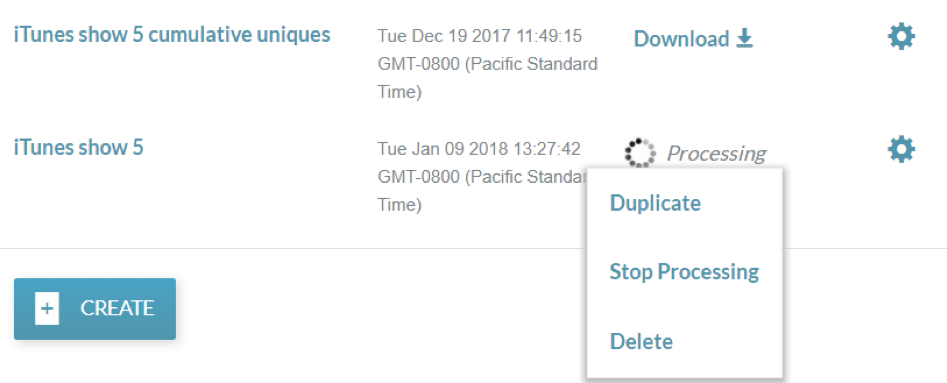
Once you select RUN REPORT you will be returned to the Campaigns page and it should display a “Processing” status.
How long reports take to complete depends on factors such as: how much data it has, the duration of the report (an hour versus a month, for instance), how many reports you have running within a single Report Job, and the type of data/campaign (E.g. “multi-vote” campaigns where multiple votes are submitted at once by users are less taxing on the reporting system than those that are single submits).
Note: If you require real-time results or have a turnaround time for reports of less than 30 minutes, use the campaign dashboard in Connect or Campaign Manager instead of Campaign Reports.
When completed, it will automatically go from “Processing” to “Download”

Stopping a Report
If you select RUN REPORT but want to cancel it and stop it processing, on the Campaign page select the cog next to the relevant report and select ‘Stop Processing’. This will stop the processes on the back-end (freeing up process space for other report jobs to run).
Deleting a Report that has been Completed
How you “manage” a Campaign page and all the reports is entirely up to you (unless you share it with another Producer). You can delete reports that ran but are not needed – either because they were wrong or because you want to keep the campaign page “tidy”.
To delete a report, click the cog and select “Delete”. Data will not be deleted from the database, but the report will be deleted from the Campaign Reports dashboard.
Duplicating a Report that has been Completed
“Duplicate” is a useful feature and avoids the need to re-input parameters or selections you have made before. You can use the Duplicate feature for a job that is merely scheduled (and not completed) or for a job that has completed.
The Duplicate feature will carry over all the same selections made from a previously set job which you can edit what you like such as report name, dates, which reports are selected etc.
To Duplicate a job select the cog and click “Duplicate”. You will see the previously selected parameters and you can go through the job set up process as outlined in full above either with or without edits.
Quick View Report Summary Review & Access to Report Job IDs
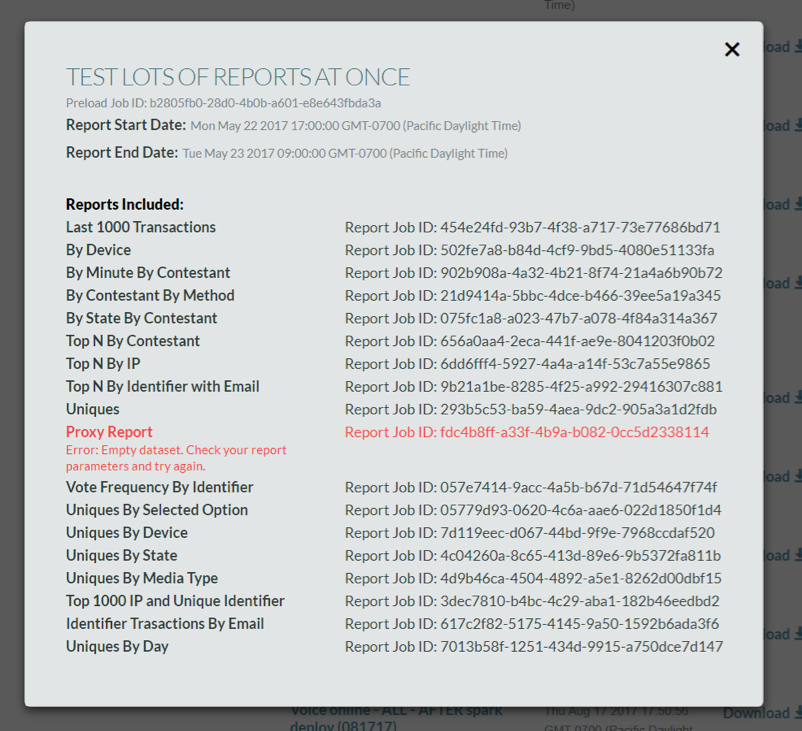
When a report job has completed you can see the status of each report within the job by clicking on the Job name (in blue).
Here you can see the Report Job ID (if you need to discuss an issue with SysAdmin, they will ask for this Report Job ID) as well as error messages for reports which failed to return results. See Report Errors for more info on errors.