
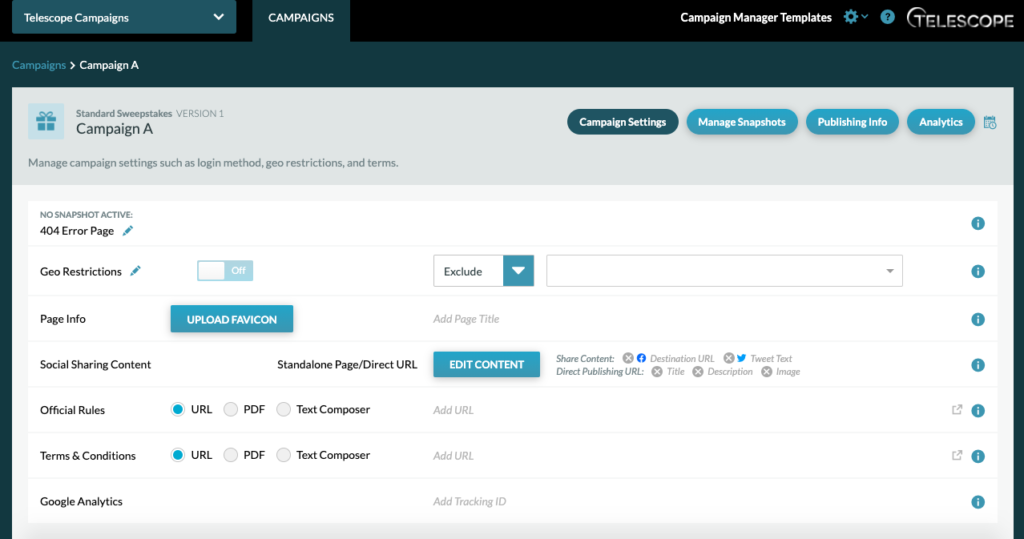
The Campaign Settings is the first page you will be brought to when opening a campaign and the first set of items that should be configured when starting a new campaign.
Template Campaign Settings may very, but most will have access to updating the 404 Error Page, Geo Restrictions, Page Info, Social Sharing, Official Rules, Terms & Conditions, and Google Analytics.
404 Error Page
If there is no snapshot active for your campaign, the URL will show a 404 Error Page. You can make the 404 Error Page for each campaign unique by adding an image or video, writing a special message, and/or adding text links. You can access the 404 Error Editor Page by clicking the pencil icon.
Geo Restrictions Page
Each campaign will have its own Geo Restrictions page in which a user will see if they are out of geo. You can make the Geo Restrictions Page unique for each campaign by adding an image or video, writing a special message, and/or adding text links. You can access the Geo Restriction Page by clicking the pencil icon.
To update Geo Restrictions:Toggle the Geo Restrictions “on” to determine who can view the campaign. “Include” or “Exclude” regions with the dropdown arrow and type in areas that need to be included.
Page Info
In the Page Info section, you can upload a favicon and add a page title to the web page tab. See example below.
Favicon Specs: 32x32px PNG.

Social Sharing Content
The Social Sharing Content section is where metadata is added. Add a title, description, and image that will be shared when the link is shared.
Official Rules
Rules can be uploaded by URL, PDF, or Text Composer. The official rules link will appear on all snapshots.
Important Note: Every time a PDF is uploaded, a new URL is generated.
Terms & Conditions
T&C can be uploaded by URL, PDF, or Text Composer. The T&C link will appear on all snapshots.
Google Analytics
To track your campaign via Google Analytics, create a GA ID and add it into the given box.