
A snapshot controls what state the end users will see on your application at a given point in time. To manage the snapshots of your campaign, click the “Manage Snapshots” button when in your campaign and you will be brought to the Snapshot Manager.
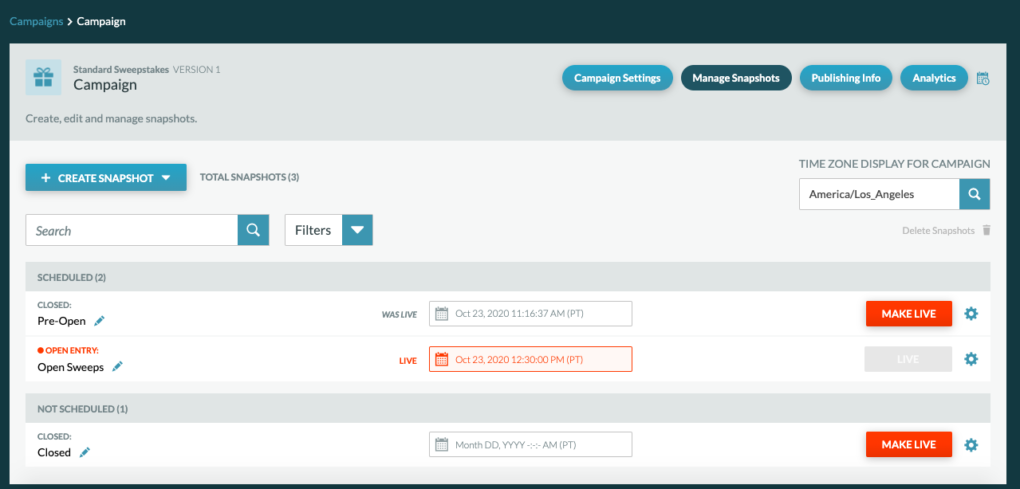
In the Snapshot Manager, you can:
- Create Snapshots
- Search for Snapshots
- Filter Snapshots
- Edit Snapshots
- Duplicate Snapshots
- Preview Snapshots
- Delete Snapshots
Search for Snapshots
In the Snapshot Manager you can search for a snapshot by name and clicking the magnifying glass icon or pressing enter.
Filter Snapshots
Snapshots that were previously live can be filtered to be hidden.
Edit Snapshots
To edit an existing snapshot, select the pencil icon next to the snapshot name on the Snapshot Manager.
Preview Snapshots
To preview a snapshot, click the cog of the snapshot and click “preview”. The preview will show what the snapshot will look like when it is live. Any data inputed in the preview will not be viewable in the analytics.
Delete Snapshots
To delete a snapshot, click the cog for the snapshot and click “delete”. Once a snapshot is deleted, all analytics data associated with the snapshot will be deleted as well.