
To make a Trivia or Poll Question:
- Create an Open Snapshot with your questions and answers.
- Before making the snapshot live, go to the Scoring Modal and mark your questions as Trivia or Poll.
- If setting as a Trivia question, you must set the correct answer to the trivia questions and add points values
- If setting as a Poll question, there is not correct answer but there is an option to award participation points for answering the poll question
- Make the snapshot live or schedule the snapshot to go live (See Creating Snapshots and Games > Schedule Snapshots and Make Snapshots Live)
How to Mark Questions As Trivia or Poll in the Scoring Modal
The questions scoring type is determined in the Score Modal with a dropdown field per question.
To get to the Score Modal, click the icon within the Open Snapshot or on the Snapshot Manager Page.
Open Snapshot:
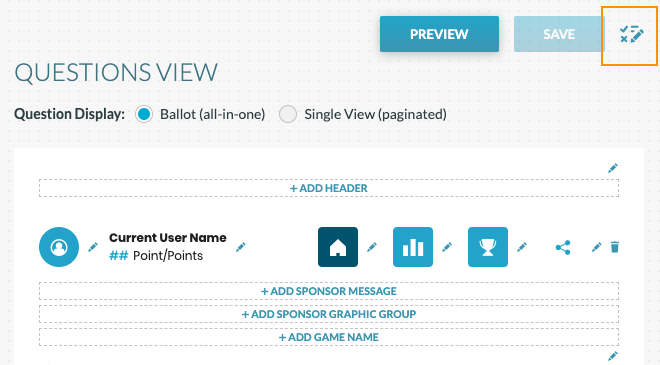
Snapshot Manager Page:

All questions are set to Prediction by default. Click the dropdown arrow at the top of each question section within the Score Modal to make a question a Trivia (instant reveal) or Poll.
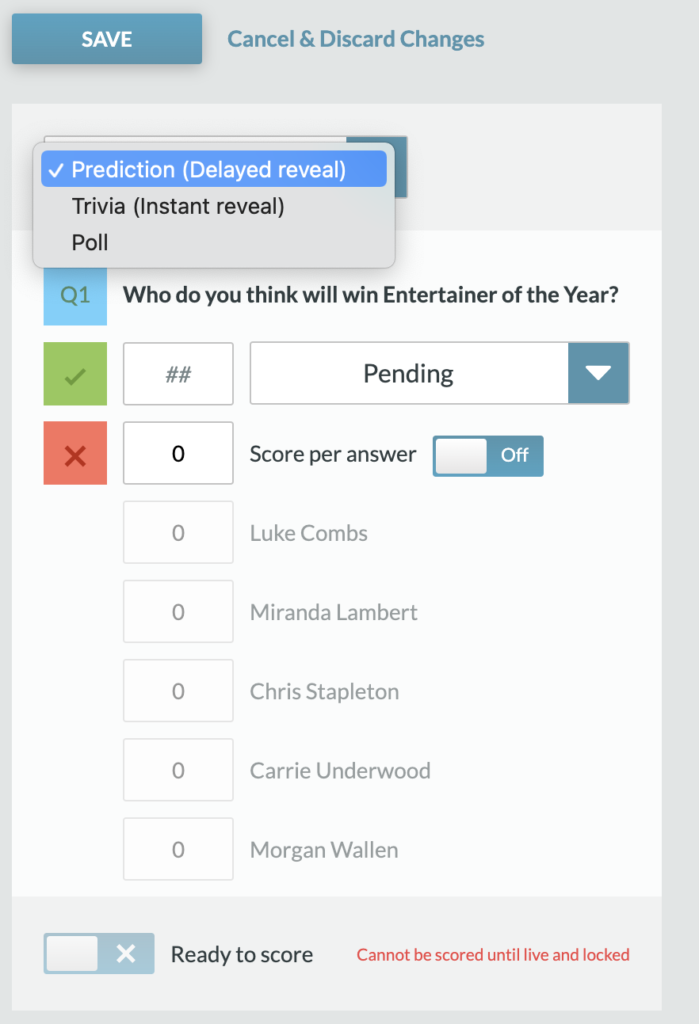
Selecting the Correct Answer for Trivia and Adding Points
Once you select Trivia (instant reveal) you will need to add an answer selection and point values.
Points Values can be added for only the correct question (add points next to green checkbox and put correct answer in dropdown marked “Pending”) or points can be awarded to each answer (turn “Score per answer” toggle “on” and add points per answer)
If an answer selection (needs at least the correct answer provided) and point value is not entered, you will receive an error message to provide these items before going live.
You will need to complete these two sections to save the score settings.