
Once a snapshot is locked, the admin can select the correct answer per question from the dropdown.
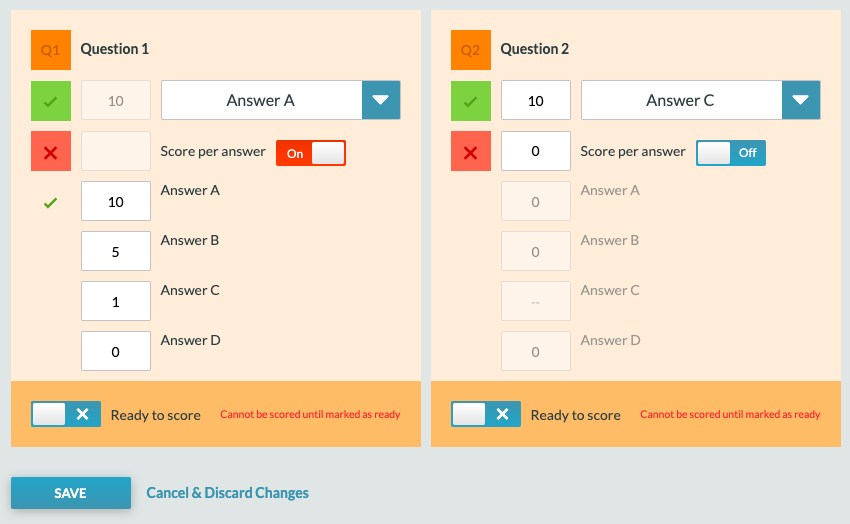
Points can be assigned for correct and incorrect answers (see example above). You can also assign different points per answer option by selecting the “score per answer” toggle.
Once points and answers are updated, you will be able to toggle the question to “ready to score” and the question box will then turn green.

Color Key
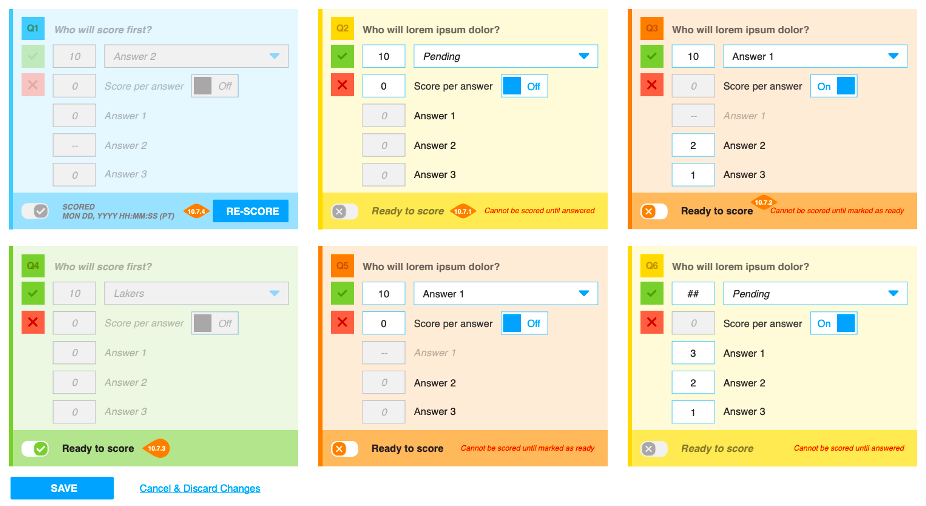
Yellow: An answer and point values are required in order to toggle “Ready to Score.” Therefore, the toggle is disabled.
Orange: Once an answer is selected, the Ready to Score toggle is enabled.
Green: Once Ready to Score is toggled “On”, correct answer and points are no longer editable. If toggled off again, correct answer and points become editable again. Because “Ready to Score” is “On”, this question will be scored upon the next scheduled scoring job.
Blue: After a question is scored, the “Ready to Score” toggle becomes disabled. The time at which it was scored is displayed, and a Re-Score button becomes available. Once Re-Score is pressed, the question returns to range state – Answer & Points Assigned, Ready to Score Off.