
Once all the Campaign Settings are configured in your campaign, you are ready to set up your first Predictor Game.
Go to the “Manage Snapshots” tab within the campaign to reach the Snapshot Dashboard.
On the Manage Snapshots tab, you can:
- Create and Edit Snapshots
- Manage Games
- Duplicate Games and Snapshots
- Delete Games and Snapshots
- Schedule Snapshots and Make Snapshots Live
Create and Edit Snapshots
Each campaign in a Predictor & Leaderboard Template was created to hold multiple Predictor Games. To create a game, you need to first create a Snapshot.
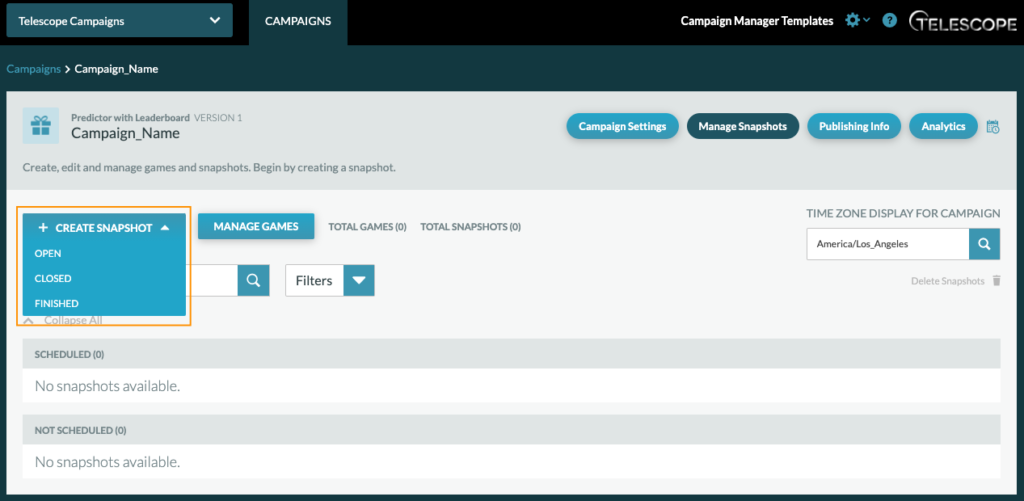
The Predictor & Leaderboard Template has three types of snapshots:
- Open Entry: Open Entry snapshots create the active predictor/trivia games. They can contain 1 question or multiple questions in a ballot view (all-in-one) or single view (paginated).
- Closed: Closed snapshots can be used as an interstitial view between games, where users can sign up or sign in, in advance of the open snapshot.
- Finished: Finished snapshots can be used as a final snapshot to close the campaign or as a pre-launch snapshot. This type of snapshot is the only view that completely bypasses the login screen.
Note: All snapshots must be added to a “Game.” A game can have 1 open snapshot or several snapshots.
Once you click on a snapshot type to create, a modal will pop up to choose a Game to associate the snapshot with. If this is your first snapshot of the campaign, or you wish to create a new game, click “Create New Game” and write in a Game Name. If you already have a game created (i.e. you made an open snapshot and now want to make a closed snapshot) hit the drop down button to select the game to associate the snapshot with, then click “Create Snapshot.”
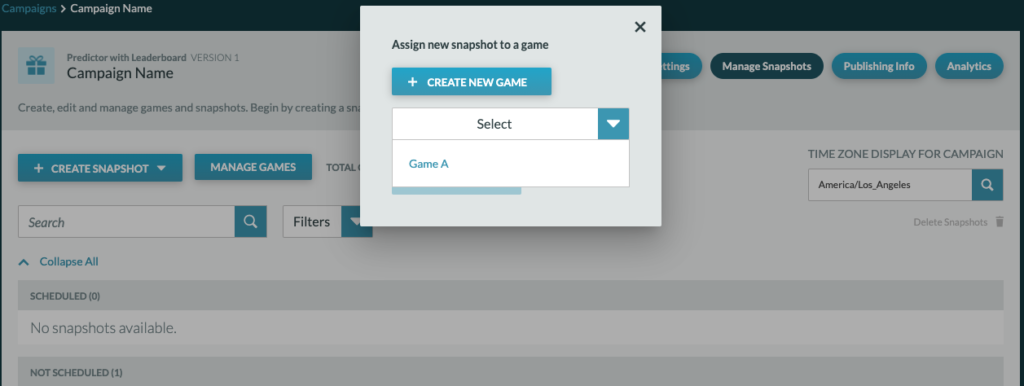
Important Note: Each Predictor Campaign MUST have a Finished Snapshot scheduled at the conclusion of a Campaign. If a Finished Snapshot is not scheduled, the Predictor Game will remain open for users to sign up and sign in indefinitely – until a Finished Snapshot is scheduled or the URL is taken down.
Manage Games
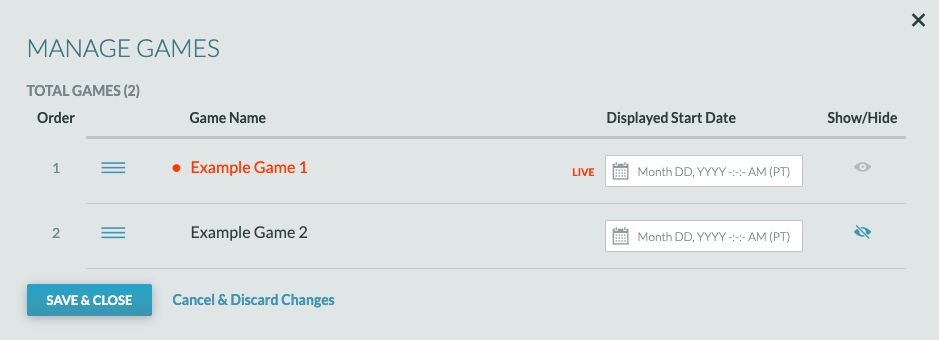
The Manage Games Modal allows you to see the full list of games within the campaign.
The game highlighted in red reflects the live game. Games can be recorded using the drag and drop icon to the right of the order number.
You can set a ‘Start Date’ for the game. This start date will be visible to the end users in the application in the Game History page (phase 2). Hiding a game will hide it from the end user app when a player looks at the Game History Page (phase 2).
Duplicate Games and Snapshots
Games and Snapshots can be duplicated by clicking on the cog next to the associated Game or Snapshot.
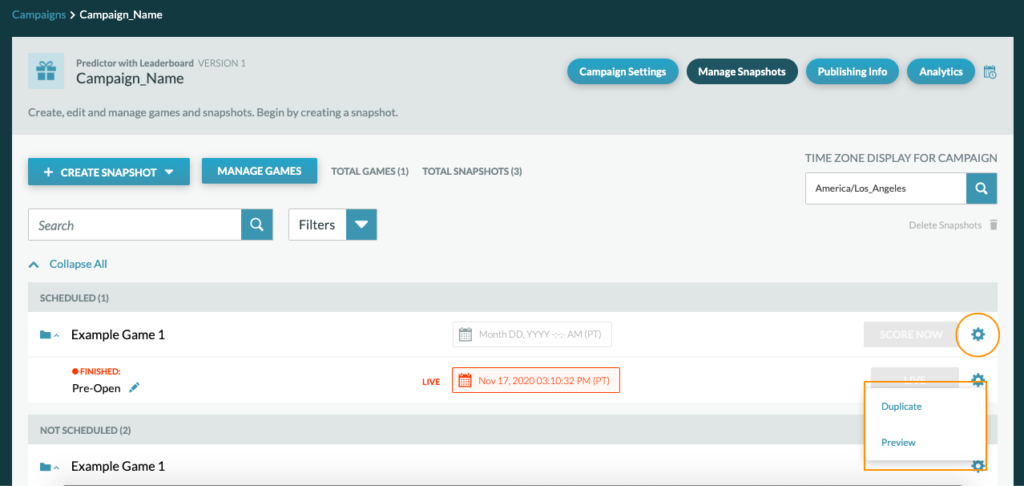
If a Game is duplicated, all snapshots within that game will be duplicated without any scheduling info.
If a Snapshot is duplicated, the snapshot will be duplicated within the same game without any scheduling info.
Delete Games and Snapshots
Games and Snapshots can be deleted by hitting the cog next to the associated Game or Snapshot. Note: Live Snapshots cannot be deleted.
If a Snapshot is deleted any points the user earned in this snapshot will also be deleted. This snapshot’s question will also no longer appear on the Game Results tab.
Schedule Snapshots and Make Snapshots Live
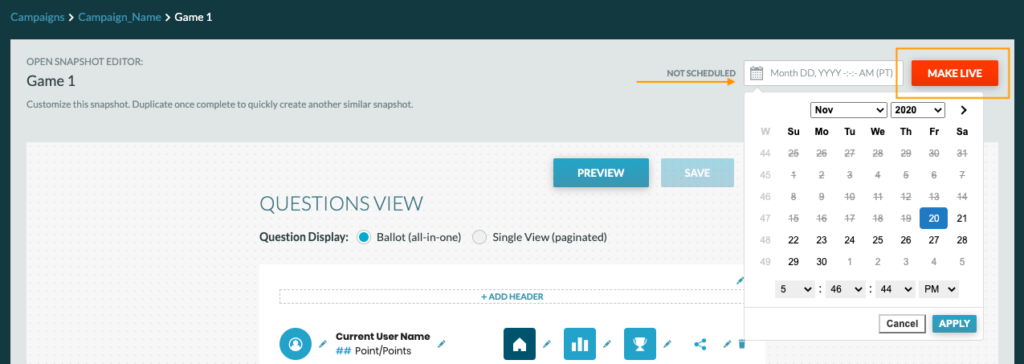
Snapshots can be scheduled or made live within each snapshot or on the Snapshot Dashboard.
Within a Snapshot:
Snapshot Dashboard:
