
To configure the Game Results Page, click the pencil icon next “Game Results” on the Campaign Settings tab.
The Game Results page shows what users will see once the questions to a game are scored.
Note: All questions will have the same styling regardless if they are sponsored/styled differently in the snapshot.
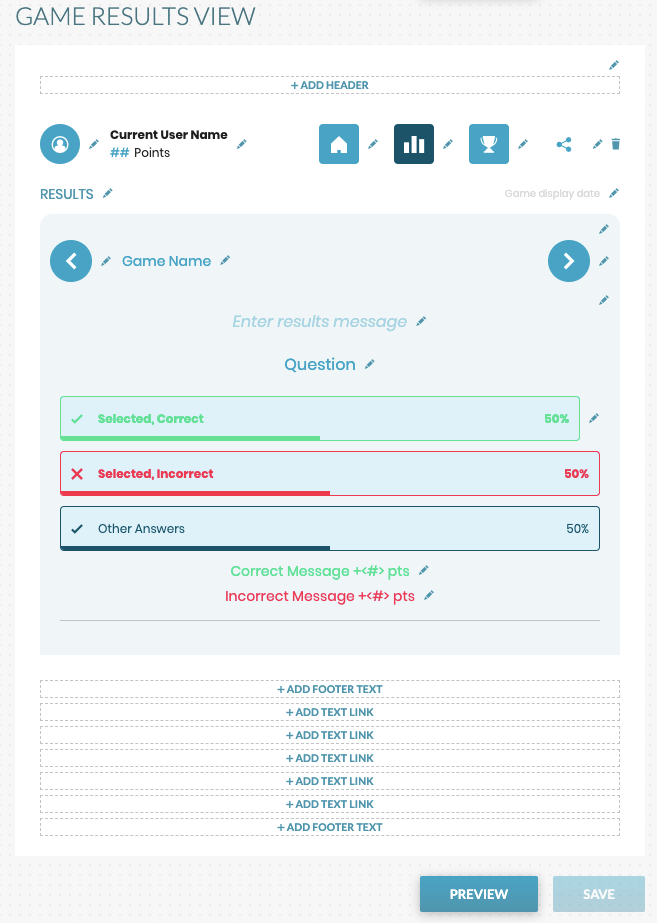
Add Header: In the header portion, there are three parts: Header Headline, Header Sub-Headline, and Header Text. All three portions can be filled out or only one. Text can also be bolded, italicized or linked in this section.
Design Tip: Add a branded background with logos. Add a space in each header section to make the background populate in the end user view.
Icons: Customize colors, borders, or upload custom icons.
Results Question Styling: Add a custom results message, edit “Results” copy, update background, text, and button colors, as well as correct, incorrect, and unselected color combinations.
Important Note: Changes made to the Results Question Styling on the Game Results View will only effect the Game Results tab.
Add Footer Copy and up to 5 Footer Links: Add important copy and links for your organization.